
For studios · Insights
The Registration fees report
See who has paid your registration fee, who still needs to, and who will pay later. Send a payment link, record a payment, or choose to charge next season.
If your studio charges a registration fee, the Registration fees report tells you where every student stands for the current season. It only lists students who have a real connection to this season, such as a class spot, a term, or a membership. It does not fill up with people who only take classes that never charge the fee.
Open Insights → Reports → Registration fees. You need the view reports permission to see it.
The five states
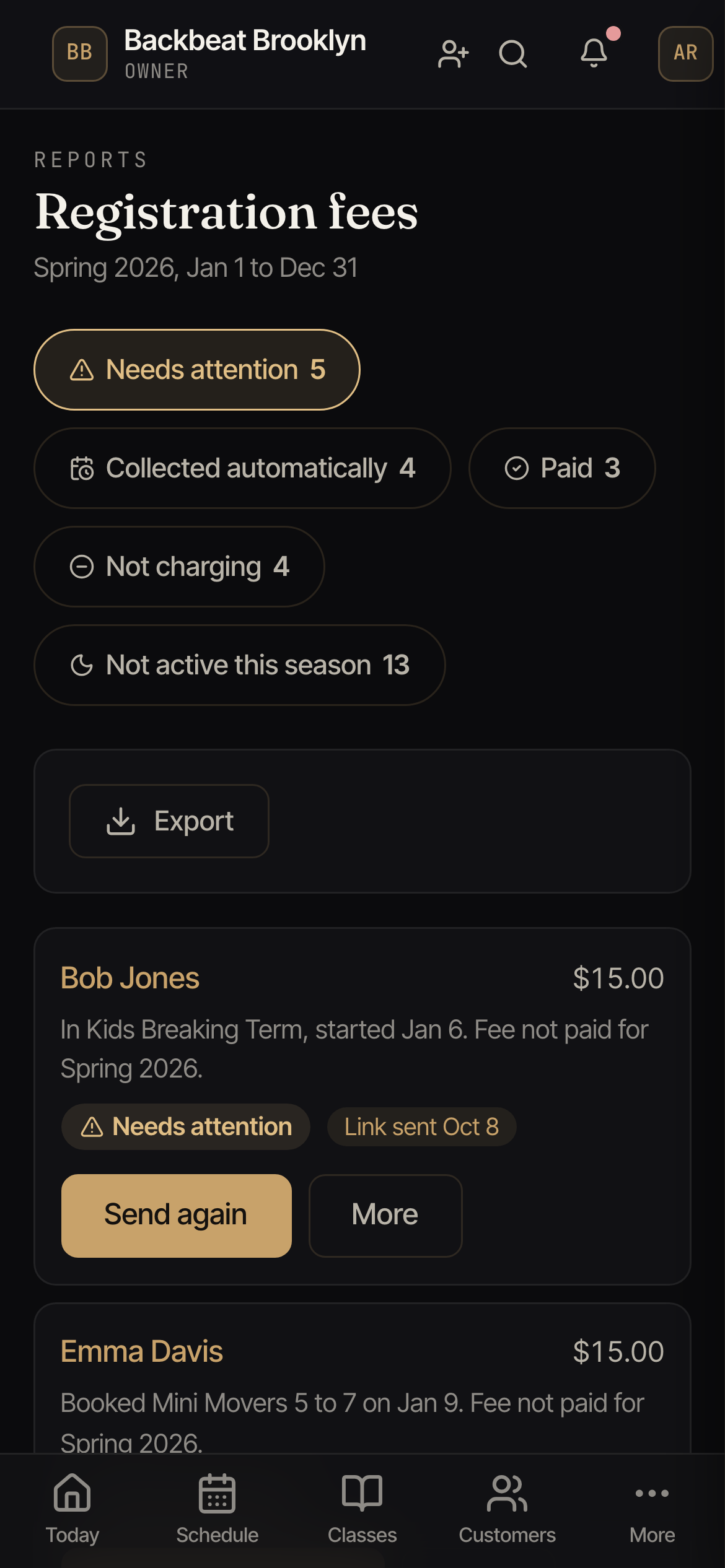
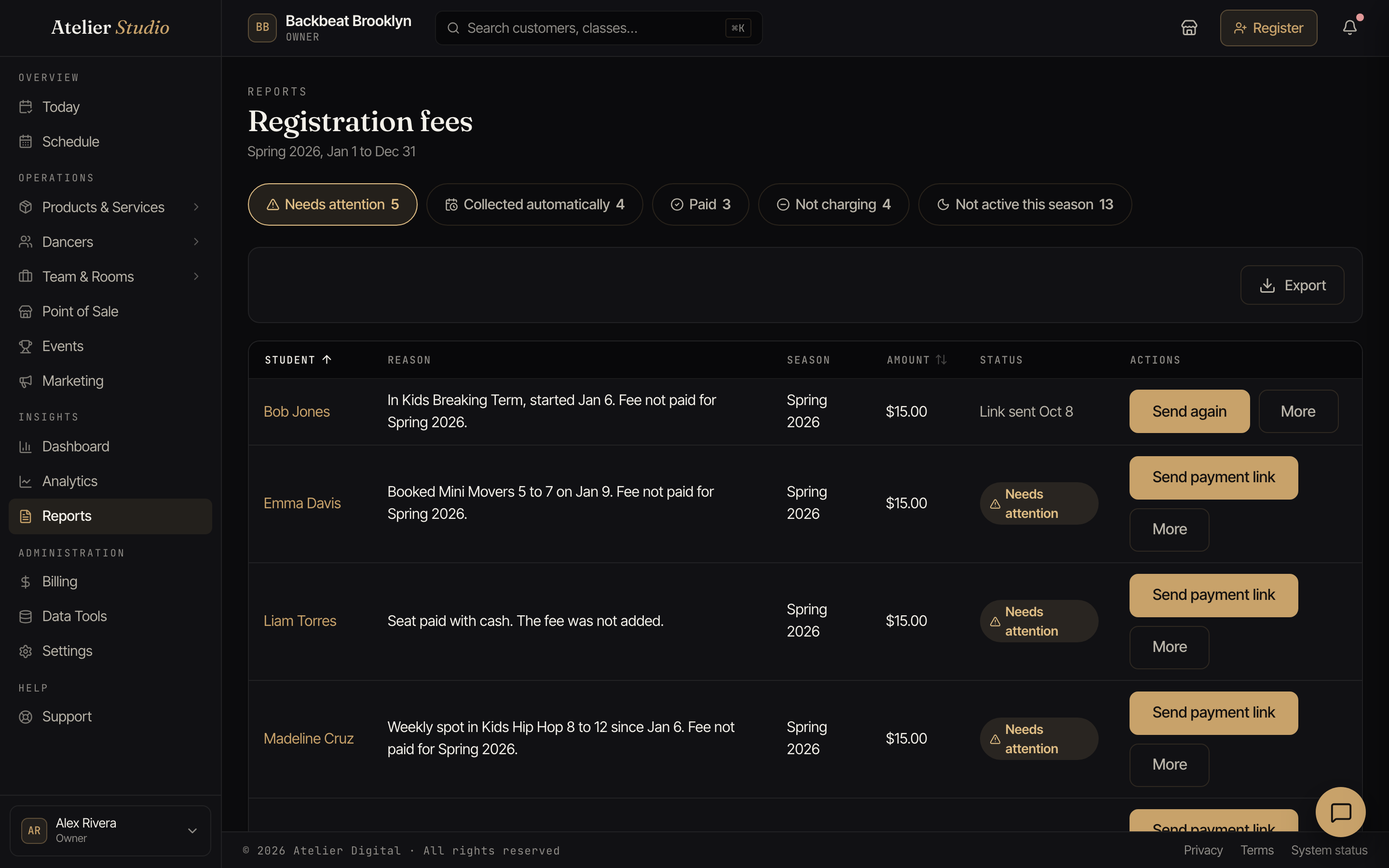
Every student is in exactly one state. The chips at the top of the report show how many students are in each one. Select a chip to see only those students.
| State | What it means |
|---|---|
| Needs attention | They have a spot in a class that charges the fee this season, they have not paid, and nothing coming up will collect it. This is the number that matters. |
| Collected automatically | They have not paid yet, but the fee will be added by itself. For example, at their next membership renewal, at their next booking, or at check-in. |
| Paid | A payment covers this season. |
| Not charging | You are not charging them this season. The reason is shown: an existing student, “Charge it next season”, or “Never charged”. |
| Not active this season | They have no class spot, term, or membership that charges the fee this season. They will be asked if they come back. They are not counted. |
Only Needs attention counts as “who still needs to pay”. A student who only takes adult classes, open gym, or any other class type that does not charge the fee will never show as needing attention.
Next to each student, a short sentence explains why. For example, “Booked Kids Acro on Jan 6. Fee not paid for Spring 2027.” or “Added to the renewal on Jan 17.” A student who will pay at the front desk reads “Collected at check-in.”
What you can do for each student
Select the More menu on a row (or the buttons on a phone card). You need the manage customer billing permission. Other staff can see the report but not change anything.
- Send payment link. Sends the student an email or a text with a link to pay just the registration fee. They pay on a secure page with no sign-in, and the report moves them to Paid. The row shows Link sent with the date. Send it again to remind them. Texts need text messaging to be on, and the student needs a phone number or an email on file.
- Record as paid. Use this when the student paid you another way, like cash or a check. Enter the amount (it can be up to the fee, never more), how they paid, the date, and an optional note. Atelier Studio saves it as a payment for this season. It does not charge a card.
- Charge it next season. You do not charge the fee this season. They are asked again starting at the next season’s start date, which the button shows. See below.
- Never charge. You never charge this person the fee. This is the same switch as the one on their customer profile.
If another person, or the student, already paid or changed something while you were looking, you see a message and the list updates. Nothing is charged twice by pressing a button twice.
What “Charge it next season” means
It is for the times you decide not to charge a new student yet. For example, someone who joins in October may not pay the fee until January. Choose Charge it next season and the student shows as Not charging with “Charge from Jan 1”.
- It covers the season that today falls in. The fee is not charged now.
- On the next season’s start date they are checked again like everyone else. If they have a spot in a class that charges the fee and nothing will collect it, they move to Needs attention. Otherwise the fee is added at their next booking or renewal.
- Changed your mind? Select Undo in the message that appears right after, or Charge now instead on the student’s customer profile.
- This choice only appears if your fee is charged every season. A one-time fee does not have it.
Export
Select Export to download the report for the state you are viewing, as a spreadsheet or a PDF. Each row has the student, the state, the reason, the season, the amount, and the date a link was sent.
On your dashboard
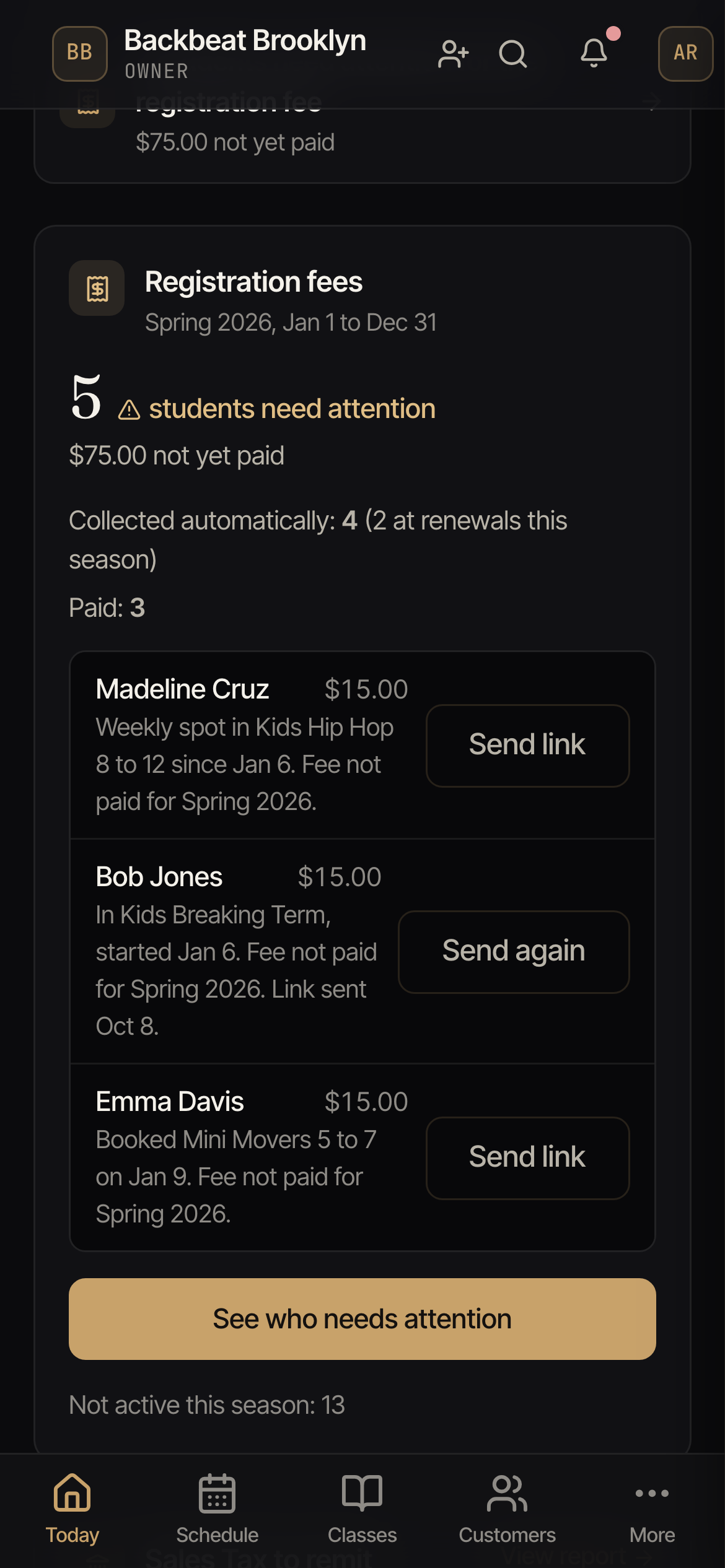
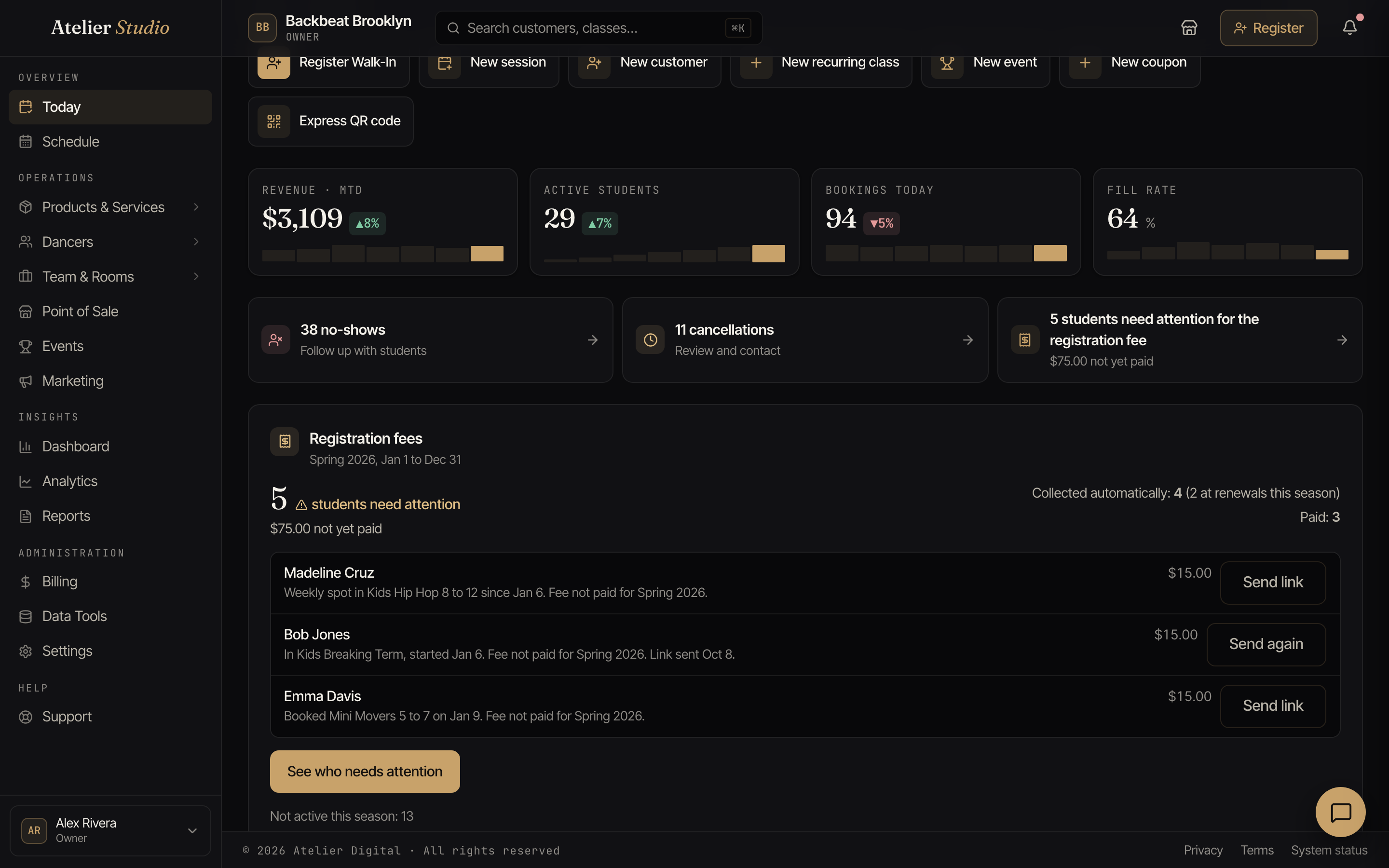
Your dashboard shows a Registration fees card with the number of students who need attention and the amount that has not been paid yet. It lists the first three students with a Send link button, and a See who needs attention link that opens this report. When no one needs attention, the card says you are all caught up. A short weekly summary message also tells you how many students need attention.
Related
- Registration fee: turn the fee on and choose which classes charge it.
- Customer profile: the same actions for one student.
- Reports: all of your other reports.