
For studios · Customers
Editing a customer's class pack
Change how many classes are left on someone's pack, make it unlimited, change when it expires, or remove it.
Sometimes a customer’s pack needs a fix. Maybe you promised them two extra classes, gave them a pack that never runs out, or want to give them more time to use it. You can change the pack they hold right from their profile.
Opening a pack
- Open the customer’s profile.
- On the Overview tab, find the Memberships & Class Packs card.
- Select the pencil on the pack you want to change.
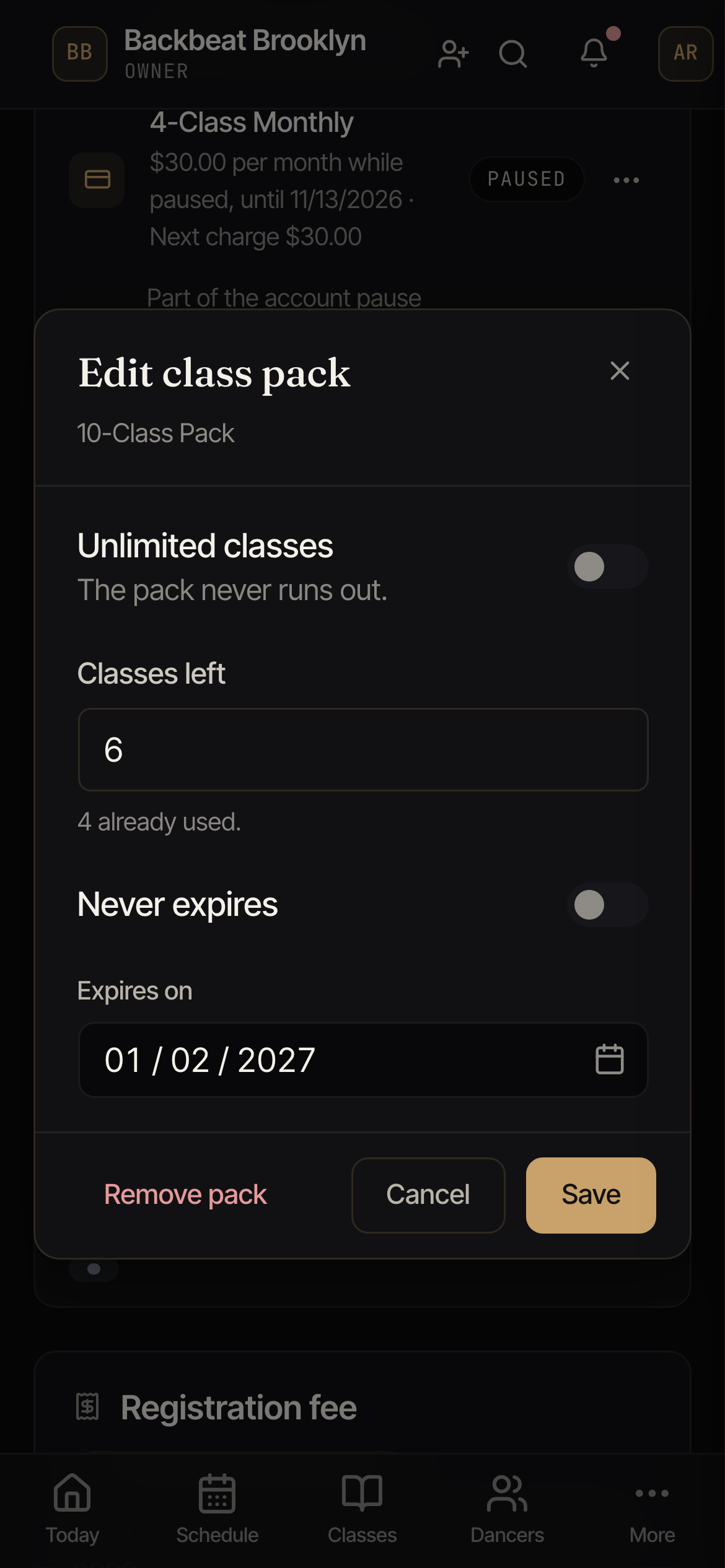
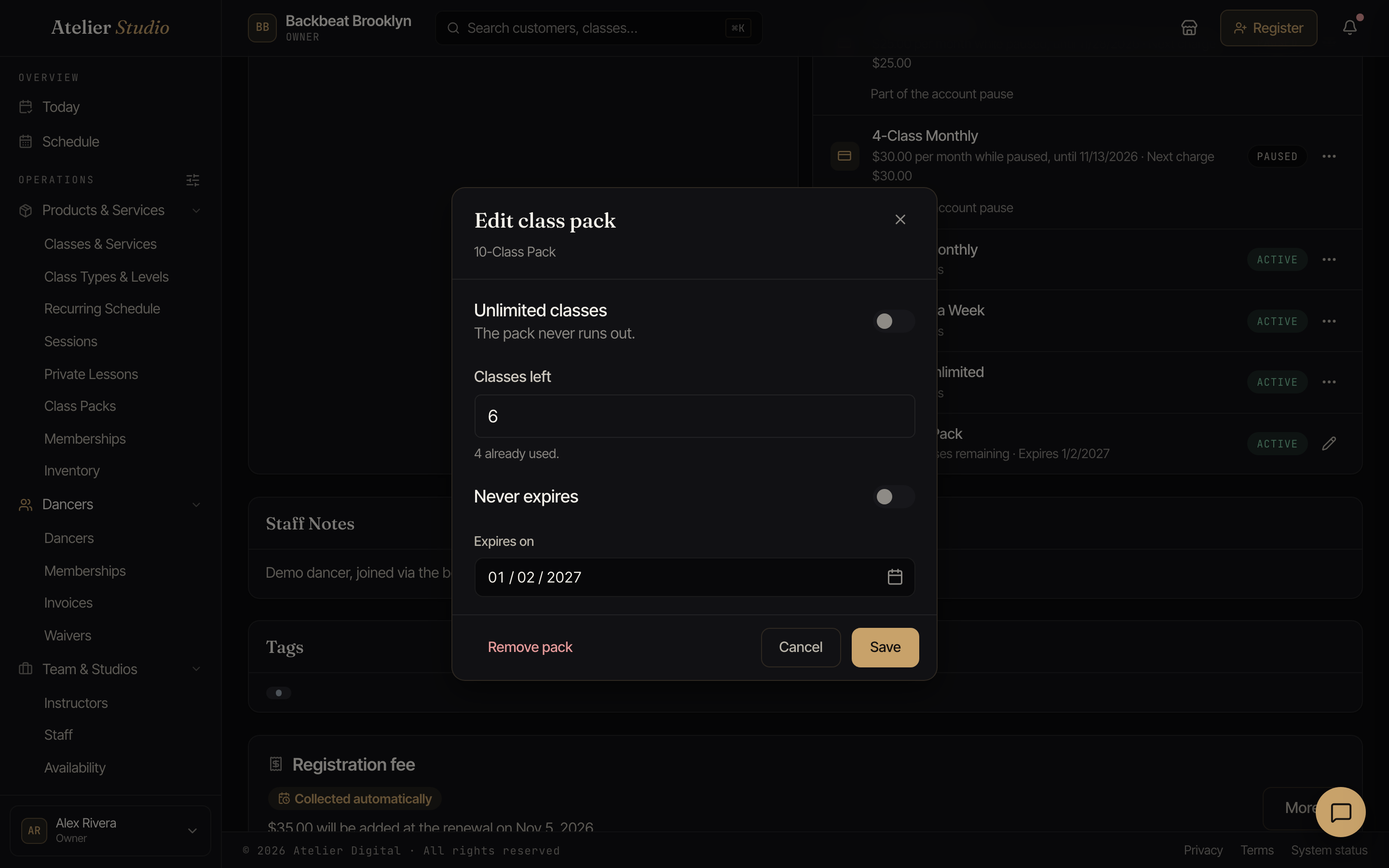
You need permission to manage customers to see the pencil.
Classes left
Type how many classes they have left, from 1 up to 10,000. Under the field you can see how many they’ve already used. Those stay counted, so their history is right.
Want the pack to never run out? Turn on Unlimited classes. They can then book any class the pack covers, as often as they like, until it expires. Everywhere the pack shows up (your studio screens, the customer’s account, the booking page, and the Backstage app) it reads Unlimited classes instead of a number.
When it expires
Pick a new date in Expires on. The pack works through the end of that day. You can pick today or any later date.
To let them keep the pack forever, turn on Never expires.
Select Save when you’re done. You’ll see Pack updated.
Removing a pack
Select Remove pack and confirm. The pack comes off the customer’s account and can’t be used to book anymore.
- Past bookings keep the pack’s name, so your history still shows what paid for each class.
- No money is refunded. If you want to give money back, do that from the Payments tab. See Refunds.