
For studios · Backstage App
Availability and staff availability
Set your own teaching hours and time off from your phone, and, if you manage instructors, change theirs.
Tell your studio when you can teach. Backstage saves each change as you make it. The same information is used on the web. See Instructor availability.
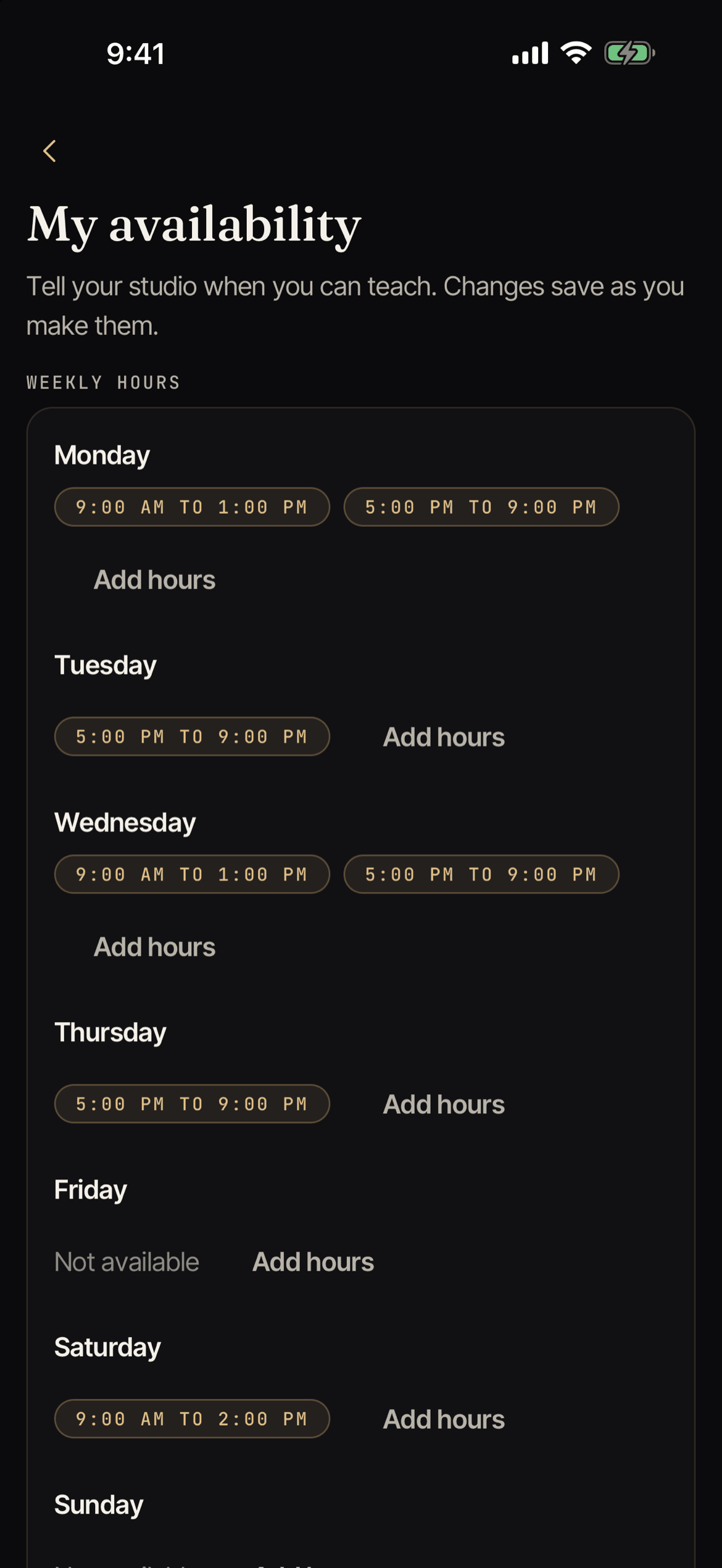
Your own availability
Open More, then My availability. (You can also find it in Me.) Your sign-in needs to be linked to an instructor profile. If it is not, you see “No instructor profile”. Ask your studio owner to link it.
Weekly hours
Under Weekly hours, each day shows your hours or Not available.
- Tap Add hours on a day to add a time block. Choose From and To, then tap Save hours.
- Tap a block to change it, or tap Remove these hours.
- Hours start and end on the quarter hour (:00, :15, :30, or :45). The end must be after the start, and blocks on the same day cannot overlap.
Time off
Under Time off, tap Add time off.
- Choose the Day.
- Choose Whole day or Part of the day. For part of a day, set From and To.
- Write a Reason, in a few words, like “vacation”.
- Tap Save time off.
Backstage checks your classes first. If you already teach a class at that time, it lists the class under You have classes at that time. Saving your time off does not cancel those classes. Tell your studio so someone can cover them.
To change a time-off entry, tap Edit. You cannot change its day. To use another day, remove it and add a new one. To remove one, tap Remove, then Yes, remove it.
Staff availability
If you manage instructors, open More, then Staff availability. Pick a person to see or change when they can teach and when they are away. It works the same as your own availability. If you save time off for someone who still has a class at that time, Backstage tells you.
If your role does not include managing instructors, ask your studio owner for access.