
For studios · Backstage App
Students
Find a student, see their passes, bookings and payments, manage a membership, and edit their details.
The Students tab helps you find anyone in your studio and see what you need to know about them.
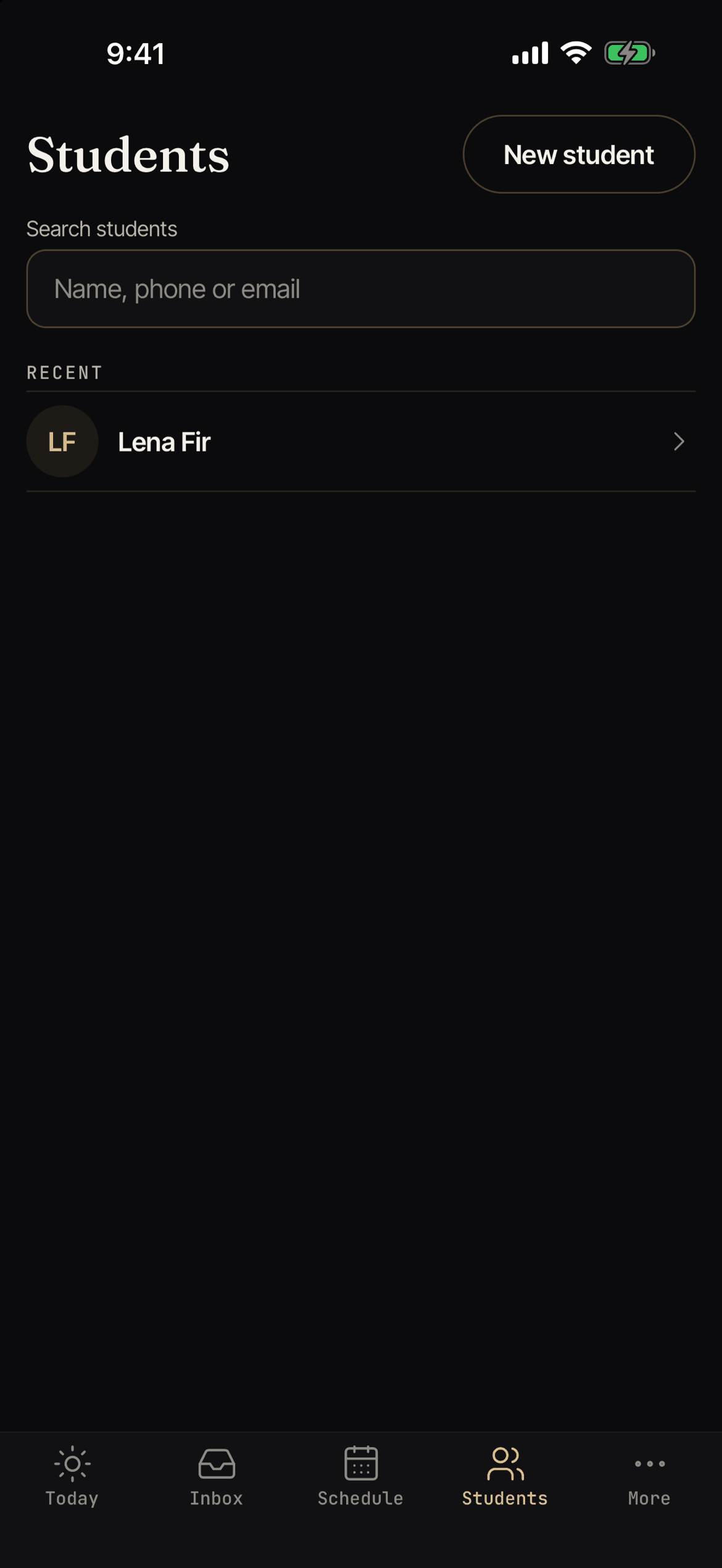
Find a student
Type a name, phone number, or email in Search students. Type at least 2 letters or numbers. People you opened lately show under Recent, even when you are offline. Searching needs a signal.
If your role cannot see student details, you see “You don’t have access to student details.” Ask your studio owner.
The student page
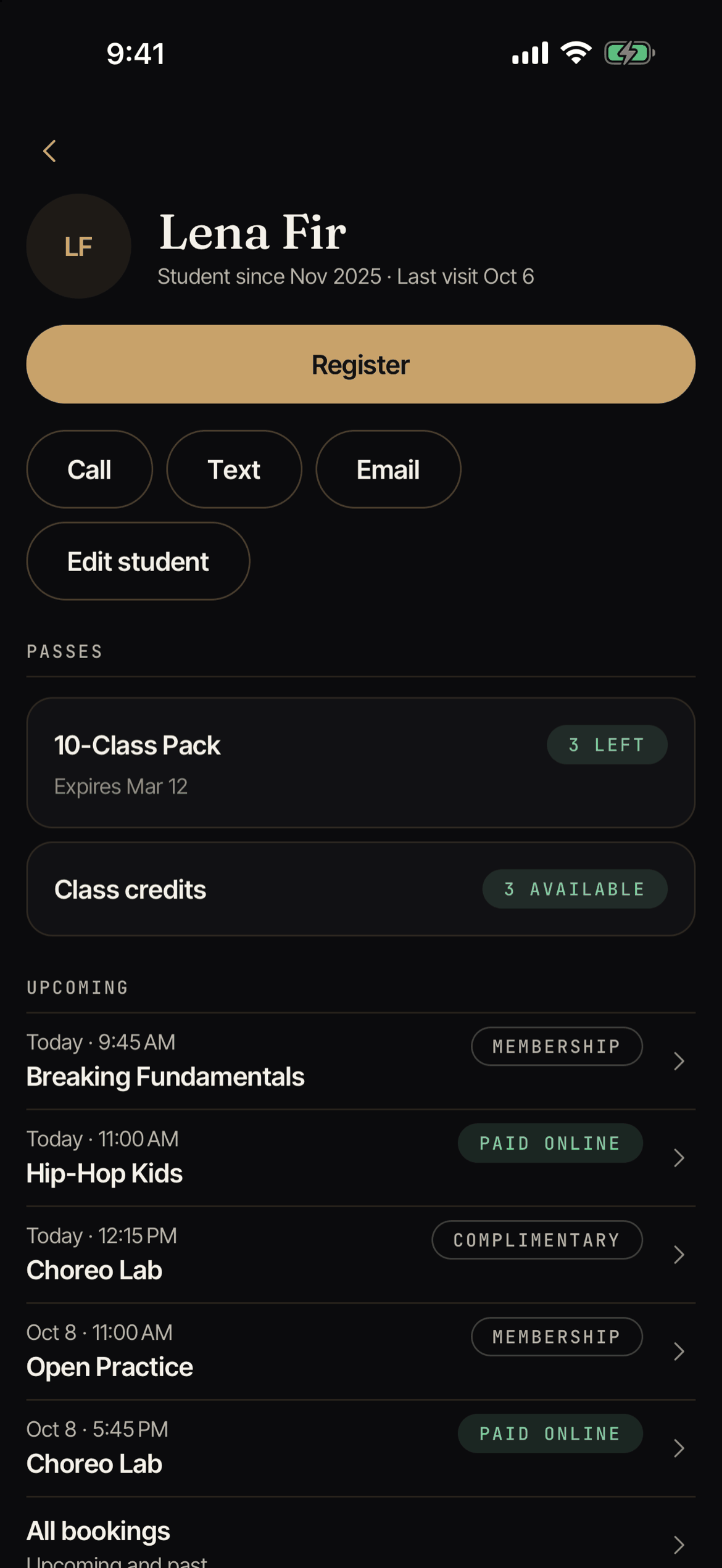
The page shows, from top to bottom:
- Their name, Student since, and Last visit. Tap Call, Text, or Email to contact them. On a tablet, which usually cannot place calls, you see the phone number with a Copy button instead of Call and Text. On a wide screen the student page opens next to the list. See Run your front desk on an iPad.
- Household: other people in the same family. Tap one to open them.
- Passes: their memberships and class packs, with what is left, when it renews or expires, and flags like Paused or Past due.
- Weekly spots: the classes this person comes to every week. See Weekly spots.
- Upcoming and Recent classes. A past visit shows Came or No show.
- At a glance: whether the waiver is signed, and any notes.
- Money: the Card on file, Store credit, and Refunds on the way. These need billing permission.
At the bottom you find Register, Edit student, All bookings, and Payments.
Under Money, tap Add card (or Add another card) to save a card. See Save a card.
Plans, waivers, and store credit are changed in Atelier Studio on the web.
Manage a membership
Tap a membership under Passes. You see its status, plan, visits, next charge, and whether auto-renew is on. Under Manage you can:
- Turn on auto-renew or Turn off auto-renew.
- Set member price: a custom price for this person for every future charge. You can add a note, and tap Use regular price to go back.
- Pause membership: choose Immediate or Scheduled, and an optional resume date. No charge happens during the pause. Classes already booked during the pause are cancelled and the credits come back.
- Resume membership, and Set resume date or Edit resume date.
- Cancel membership: choose Immediate or Scheduled. Backstage shows which bookings will be cancelled, including weekly reservations.
- Cancel pause or Undo cancel to undo a change you scheduled.
If a refund is possible, Backstage shows Prorated refund available and a Suggested refund. Choose Issue this refund with the cancellation or Don’t issue a refund now. You can also change the Refund amount and add a Reason. If the person paid with cash or another way, no refund can be issued here.
Backstage asks your phone or tablet to confirm it is you before it cancels with a refund or changes a member price. (The studio can turn this check off for a shared tablet. See Device settings.) A membership can have only one scheduled change at a time.
Changing a pass needs permission to manage customers. If you do not have it, the page is view only.
Bookings, payments and receipts
- All bookings shows Upcoming and Past. Tap Show more to look further back.
- Payments lists charges, refunds, and receipts. Each row shows the item, amount, how it was paid (like Card ending 4242 or Cash), and a status such as Paid, Refunded, or Partially refunded. This needs billing permission.
- Tap a payment to open its Receipt: the items, Registration fee, Tax, Total, and any Refunds.
- Tap Email receipt to send a PDF to the student. You can add a short message. Links are not allowed in the message. Or tap Share receipt to send it from your phone.
Bookings, payments, and receipts all need a connection.
Edit a student
Tap Edit student. You can change the name, email, phone, date of birth, emergency contact, Notes, Tags, and Active. Only what you change is saved. An active student can book classes. Only your team sees the notes.
If the student has their own Atelier Digital account, or also goes to another studio, only they can change some details. You can still change notes, tags, and active status. Changing the email here does not change the email they sign in with.
If you leave with unsaved changes, Backstage asks Leave without saving?
Add a new student
On Students, tap New student. Only the name is needed. You can add an email and a phone number with the area code. Tap Save student.
If the connection drops while saving, Backstage may say “This student may already be saved”. Open the student it shows before you save a new one, so you do not create a duplicate.
Adding and editing students needs permission to manage customers.