
For studios · Getting Started
Finding your way around
How the menu works on a computer and on a phone, so you can get to any part of Atelier Studio quickly.
Getting around Atelier Studio is the same wherever you are. The menu just sits in a different spot depending on your screen.
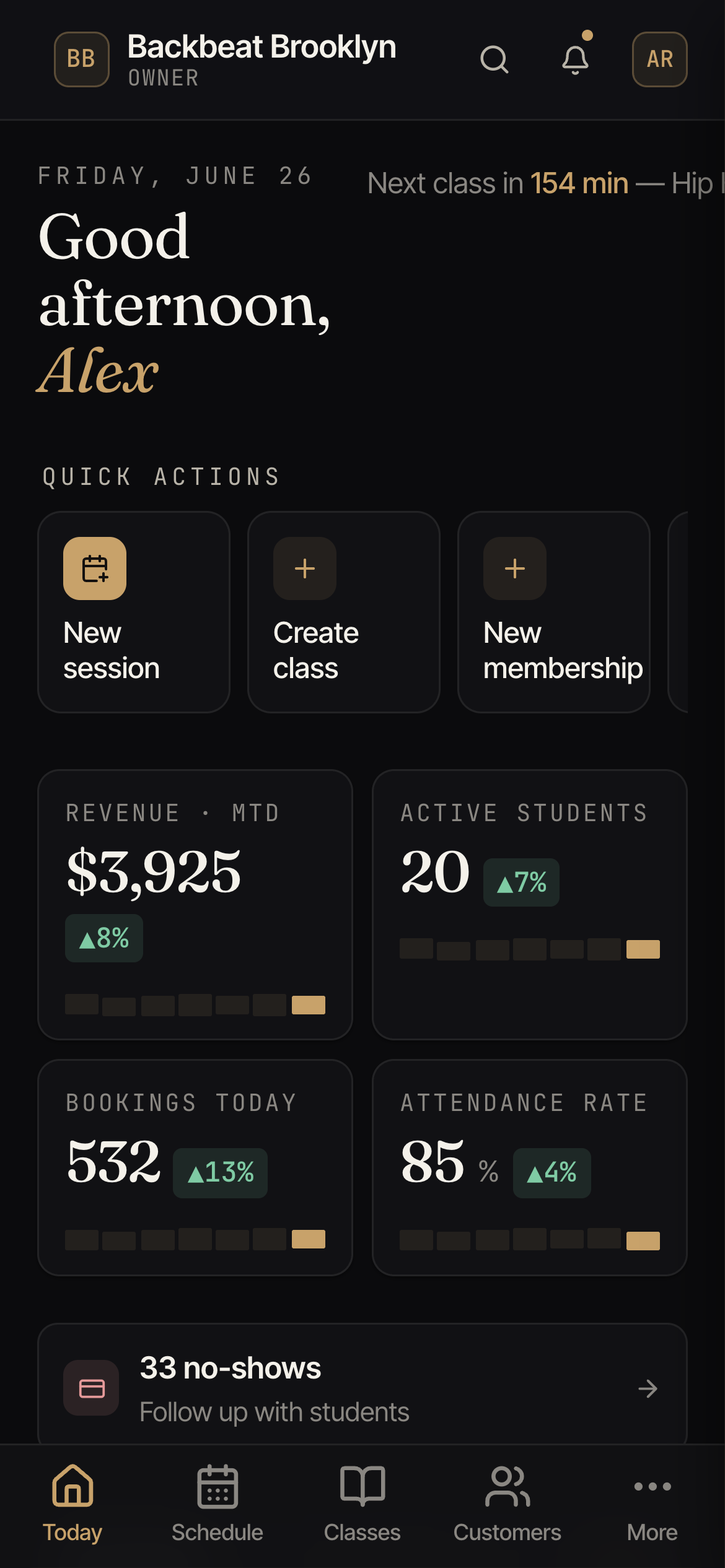
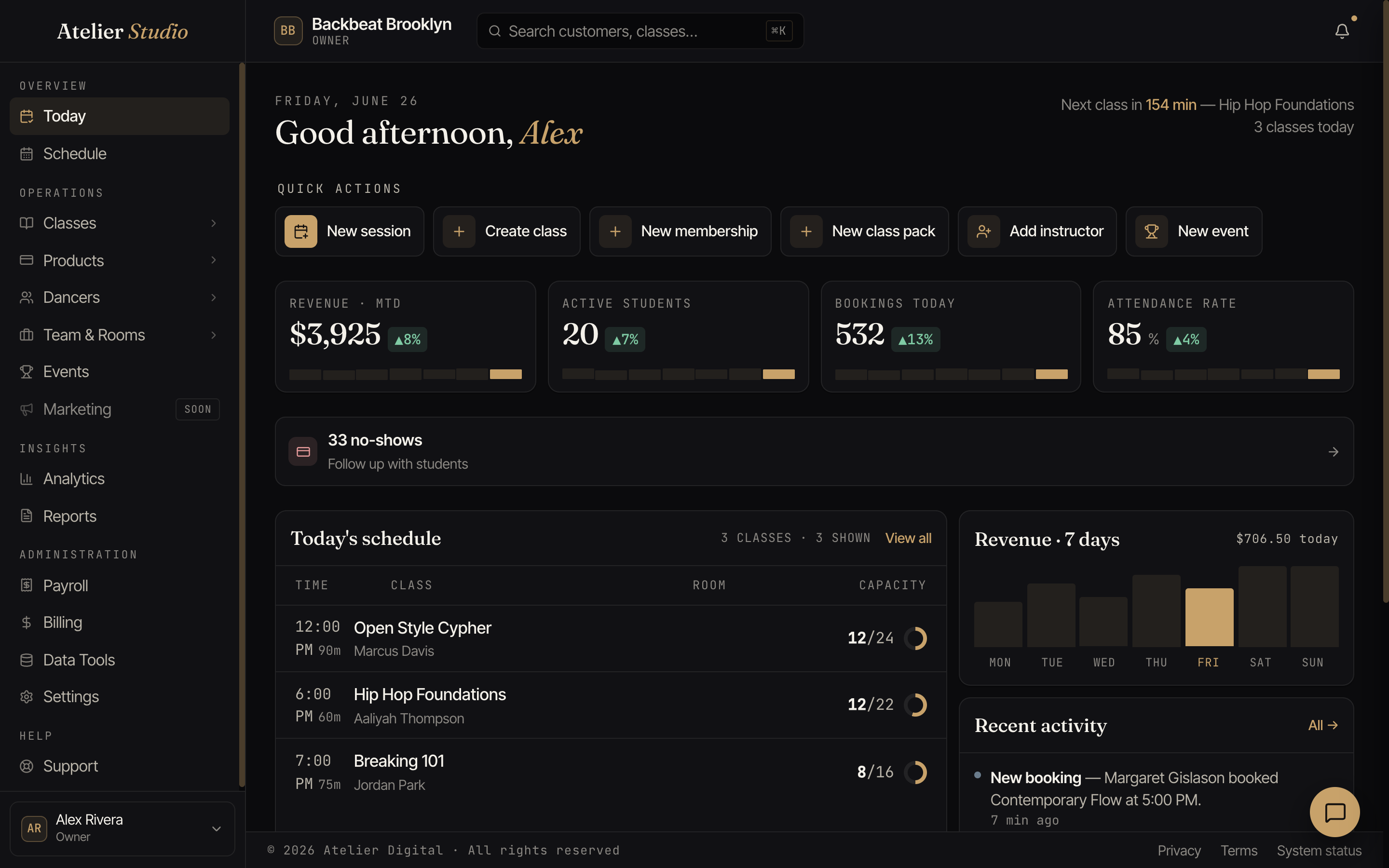
On a computer
The menu runs down the left side. It’s tidied into groups so related things sit together:
- Overview: Today and your Schedule.
- Operations: your day-to-day: Classes, Products, Customers, Team, and Events.
- Insights: how your studio is doing.
- Administration: Payments, Settings, and other behind-the-scenes tools.
- Help & Support: guides and a way to reach us.
Some items have a small arrow (›). Select one to expand it and reveal the pages inside. For example, Classes opens up to your offered classes, class types and levels, your recurring schedule, and more.
Next to the Operations heading there’s a small slider icon. Select it to jump to Settings → Customize, where you turn the features behind these menu items on or off. You only see it if you can change your studio’s settings.
On a phone
Your most-used screens (Today, Schedule, Classes, Customers) sit in a bar along the bottom, always a thumb away. Everything else lives under More.
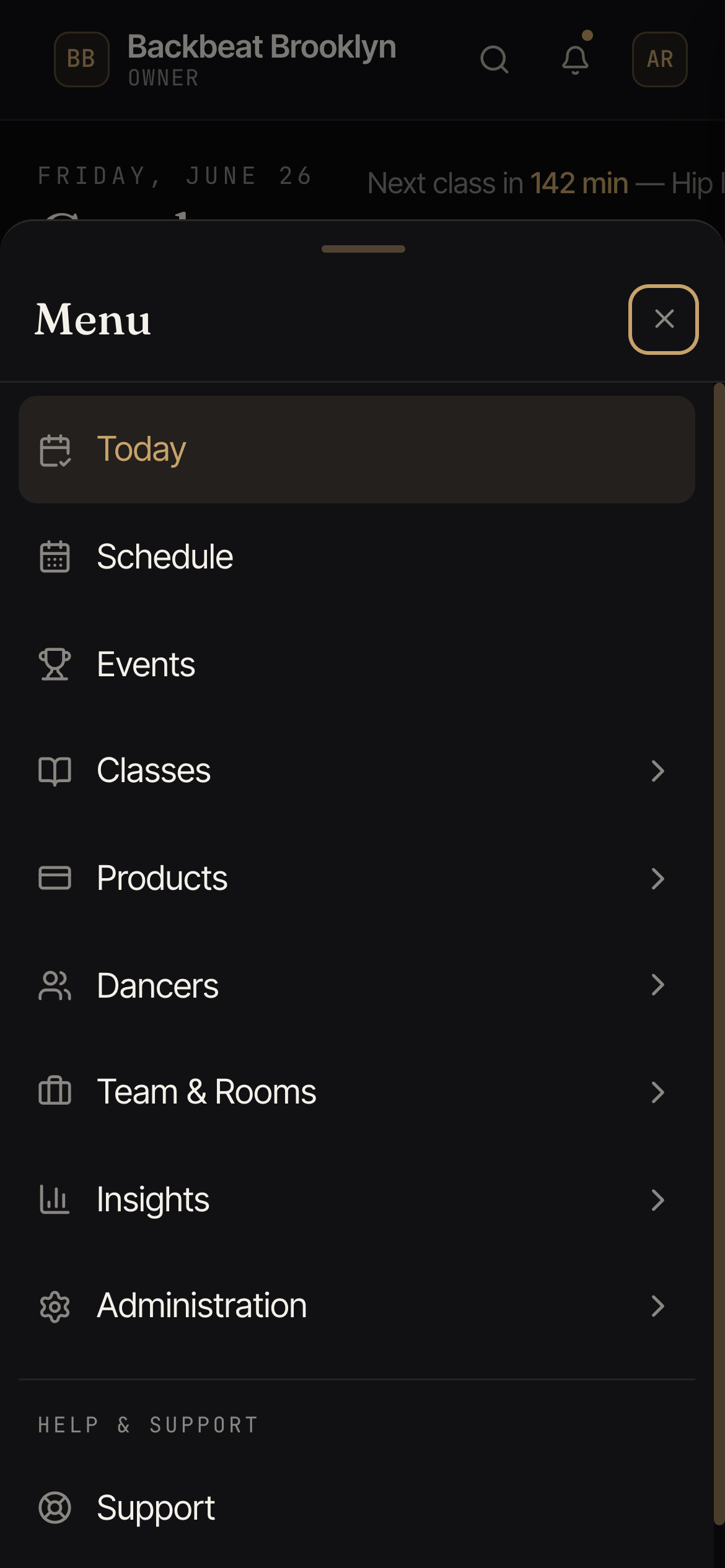
Tap More and the full menu slides up, showing the same sections you’d see on a computer. Tap anything to go there, or the ✕ to close it.
Switching studios and your account
If you help run more than one studio, your name at the bottom (on a computer) or in More (on a phone) is also where you switch between studios and reach your own account settings. The bell icon shows your notifications: activity from your own studio, plus the occasional status update or announcement from Atelier Digital (some link straight to more details when you tap them).