
For studios · Backstage App
Notifications
Choose which alerts Backstage sends to your phone and your Inbox, and when.
Backstage can tell you what is happening at your studio in two places:
- Push is the alert that appears on your phone.
- Inbox is the list inside Backstage.
If you turn Push off for something, the news still shows in your Inbox.
Allow alerts on your phone
The first time you use Backstage, it may ask Get alerts from your studio. Tap Turn on alerts to allow them, or Not now. You can turn them on later in Me.
If alerts are off in your phone’s settings, Backstage shows Off in your phone’s settings. Tap Open Settings and allow notifications for Backstage.
Alerts come in two kinds: Needs you now and Updates.
Choose what you get
- Open More, then Notifications. (You can also tap the settings icon in your Inbox, or open Me, then Notifications.)
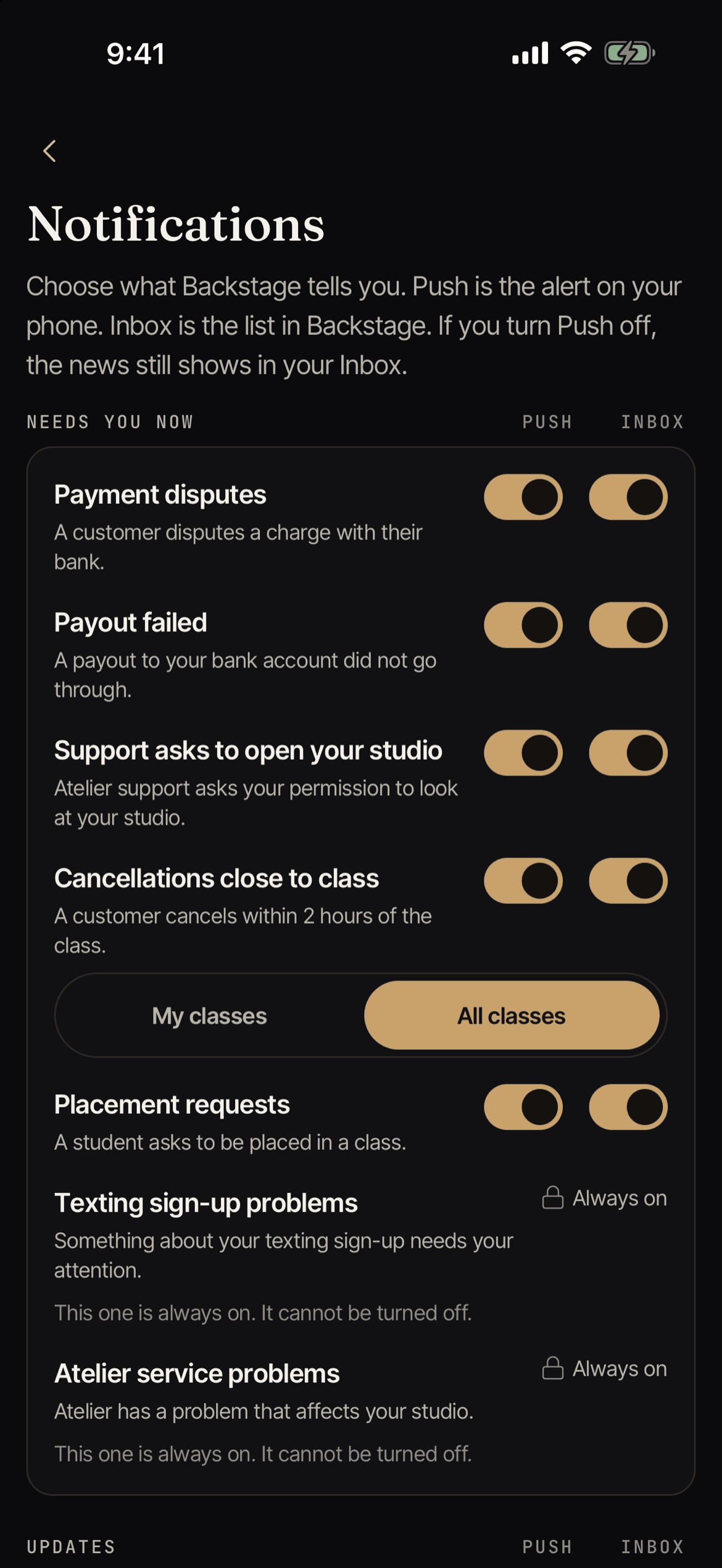
- Each row has two switches: Push and Inbox.
- Rows are grouped as Needs you now, Updates, and Summaries.
Changes save as you make them. If a change cannot be saved, the switch goes back to its earlier setting.
Some rows are marked Always on. They are important, and you cannot turn them off. Disputed payments are always on for the studio owner.
For rows that are about one class, you can choose My classes or All classes.
What is on to start with
What you get at first depends on your role. In general:
-
Things that need you now are on for the people they matter to. For example, owners get payout and account problems, and instructors get changes to their own classes.
-
New bookings are on for owners and for the instructor of the class.
-
A Morning summary is on for owners, managers, front-desk staff, and instructors.
-
Class starting soon is on for instructors.
-
These five are off until you turn them on:
- Memberships cancelled
- Memberships ended automatically
- Waitlist spot filled
- Waivers signed
- Placement requests: the alert on your phone is off. The request still always appears in your Inbox, so nobody misses it. Only the phone alert is your choice.
If you already turned one of these on before, it stays on.
Other updates, like waitlist joins and refunds, are also off until you choose them.
You only see the rows that apply to your role and permissions.
Times and timing
- Morning summary time: tap Change to pick the time. The time is the time at your studio. If you do not choose one, it is sent at 7:30.
- Class starting soon: tap Change to choose how many minutes before the class you are told. If you do not choose one, it is 30 minutes.
Hide details on the lock screen
Turn on Hide details on the lock screen to show “A customer” instead of a name until you unlock your phone or tablet. This is a good idea for a front-desk tablet, because a customer at the counter can see the screen.
Team alerts
Open More, then Team alerts. This is for the studio owner and people who manage instructors. Class alerts go to the instructor’s own sign-in. Team alerts shows which instructors have no working sign-in, so they cannot get class alerts. If everyone is set up, you see Everyone is set up. To fix a problem, tap Fix this in Atelier Studio on the web.
In the sample studio, your changes are kept only until you leave it, and no alerts are sent to your phone.