
For studios · Backstage App
Schedule and class rosters
Browse every class by day, open a roster, add people, message a class, and change or cancel a class.
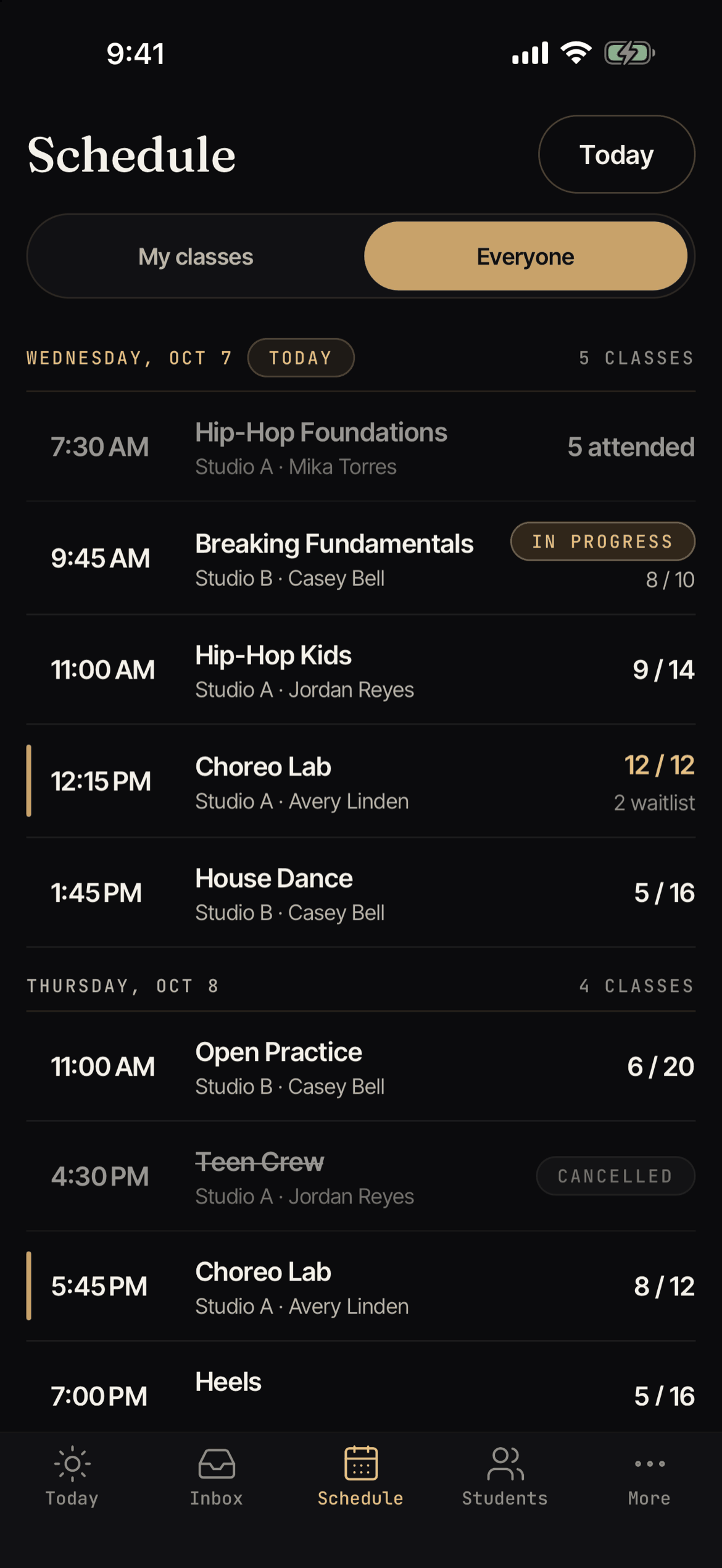
The Schedule tab lists every class, one day at a time. It is a quick way to find a class and open its roster.
On an iPad or tablet, the list of classes is on the left and the roster of the class you pick opens on the right, so you never leave the list. See Run your front desk on an iPad.
Browse the schedule
- Use Show to switch between My classes and Everyone.
- Tap Today to jump back to today.
- Each row shows the class, how many are booked (like 8 / 12), and if people are on the waitlist. A class that is yours shows Your class.
- A class can show Full, In Progress, Completed, Cancelled, Postponed, or Hidden · Schedule paused.
Scroll down to load more days. When you reach the end, Backstage says “That is as far ahead as the agenda goes.” If your role has no schedule access, ask your studio owner.
Backstage does not create or edit your class list. To add a new class, use Atelier Studio on the web.
The roster
Tap a class to open its roster. At the top you see how many are booked and checked in. Switch between Roster and Waitlist.
The roster groups people as Still to arrive, Checked in, and No shows. Each person shows how they are paying, like Membership, Class Pack, Paid Online, Complimentary, Cash, or Unpaid.
To check people in, see Today and check-in.
Class actions
Tap Class actions on the roster. What you can do depends on your role.
- Add attendee: search for a student and choose how they pay. You can use Charge saved card, Cash or check, Membership or class pack, Complimentary, or Add without payment (they pay at check-in). If the class is full, Backstage asks before it adds someone anyway. Not on your list yet? Tap New student. Only a name is needed.
- Message class: send an email to everyone who is booked. Write a Subject and a Message. One email goes to each person, and it cannot be taken back. Waitlisted students are not included. Wait a couple of minutes before you send another.
- Change instructor or room: pick a new instructor or room. You can switch on Tell the people who are booked to send them an email.
- Reschedule class: change the date, start time, number of spots, or location. If you lower the spots below the number of people booked, Backstage asks you to either Move them to the waitlist or Keep everyone.
- Cancel class: everyone who is booked is told. Your cancellation policy decides what they get back. For people in a series, you choose No refund, Part refund, or Class credit.
A class that is over or cancelled cannot be changed.
At the top of a roster, a class that already ended but is still inside your studio’s no-show waiting time shows Ended instead of Scheduled. It only changes the word. The class turns Completed by itself after the waiting time.
Removing someone from a class
Open the person’s menu and tap Remove from class. Choose what they get back, for example Follow cancellation policy, Full refund to card, Give the class back, Give a class credit, Give studio credit, or No compensation. You can also turn on the option to tell the person by email.
Refunds and credit need billing access. When money goes back, Backstage asks your phone or tablet to confirm it is you first, unless the studio turned that check off for the device. See Device settings.