
For studios · Backstage App
Register a student
Register someone for a class, a membership, or a class pack from your phone, and choose how they pay.
Use Register to sign a student up for a class, a class pack, or a membership. It works like the Register and Enroll guide on the web, in short steps made for a phone or tablet. Compare with registering someone on the web.
You need permission to manage bookings or customers. Taking a payment or giving something for free also needs billing access. Registering needs a connection. Nothing is sent until you confirm on the last step.
Start
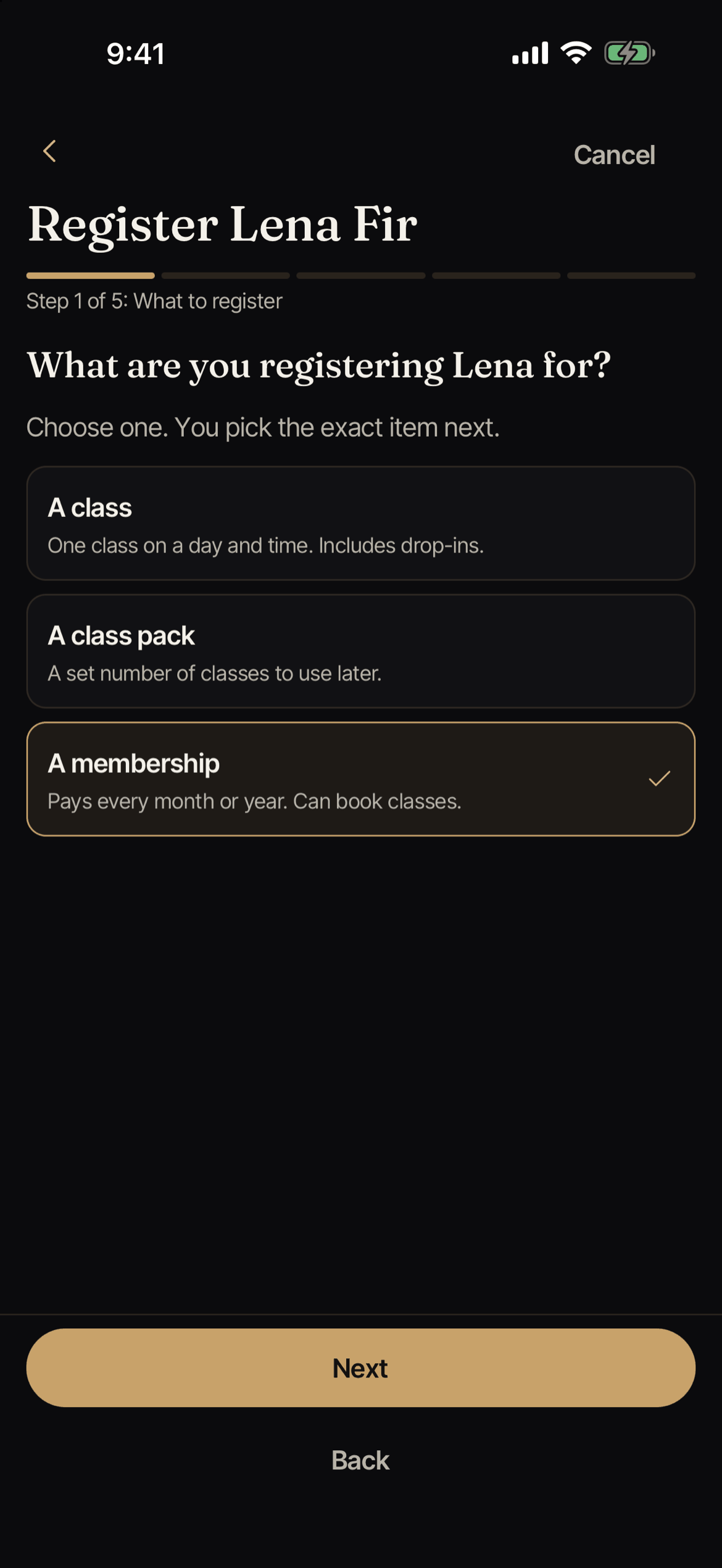
Open the student (see Students) and tap Register. You see a progress line, like “Step 1 of 5”. A membership has five steps. A class or a class pack has four.
Step 1: What to register
Choose one:
- A class: one class on a day and time. This includes drop-ins.
- A class pack: a set number of classes to use later.
- A membership: pays every month or year and can book classes.
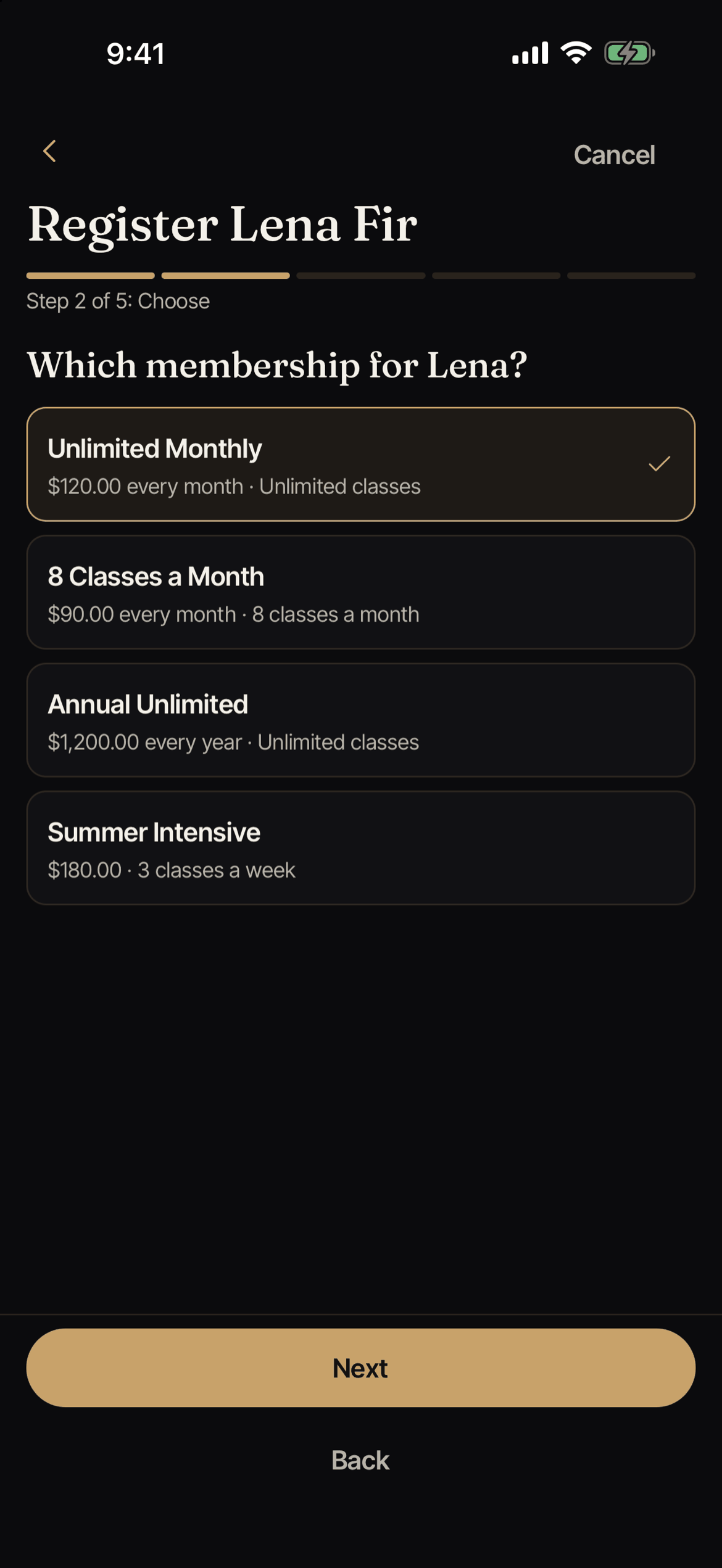
Step 2: Choose
Pick the exact class, class pack, or membership.
- For a class, you see the upcoming classes. A full class shows Full.
- For a pack, you see how many classes it has and how long it is valid.
- For a membership, you see the price and how often it renews, and what it allows, like Unlimited classes or “2 classes a week”.
If the student is already booked in that class, or already has that membership, Backstage says so and asks you to choose another. A person cannot have the same membership twice.
Step 3: How to pay
Choose one of three ways:
- Charge a saved card: use a card the student already has on file. If there is no saved card, you can add one right here. See Save a card.
- They paid another way: record cash, check, Venmo, Cash App, Zelle, Groupon, or another way. You enter the amount.
- Free: no charge. Use this to give it as a gift.
Card consent
Some cards need the customer to agree first. These show Needs their OK to charge here. Tick the box to confirm that the customer is here and agrees to the charge and to future charges from this studio. The charge does not go through until you tick it. This agreement is saved for this studio only, and the customer gets an email about it. If a card says the studio stopped charging it, or the customer stopped it, see card states.
When a membership starts (memberships only)
For a membership, you also choose when billing starts:
- Today: charge today. The next payment date is shown.
- A later date: nothing is charged today. You pick the date of the first payment, up to one billing period ahead. Then choose whether the student can use the membership before that: Not until the first payment (the usual choice) or Yes, they can use it now (for someone who already paid another way).
- An earlier date: charge today for a period that already started, such as the 1st of this month. Pick the date the period started. The membership then runs from that date for one billing period, so it ends sooner than usual. For a start date further back, import the member instead.
When you pay by another method, you can also pick Membership started on to record an earlier start date.
If the next payment is earlier than usual, Backstage asks you to choose a reason. If you choose Other, add a short note. Staff can see this note. The customer cannot.
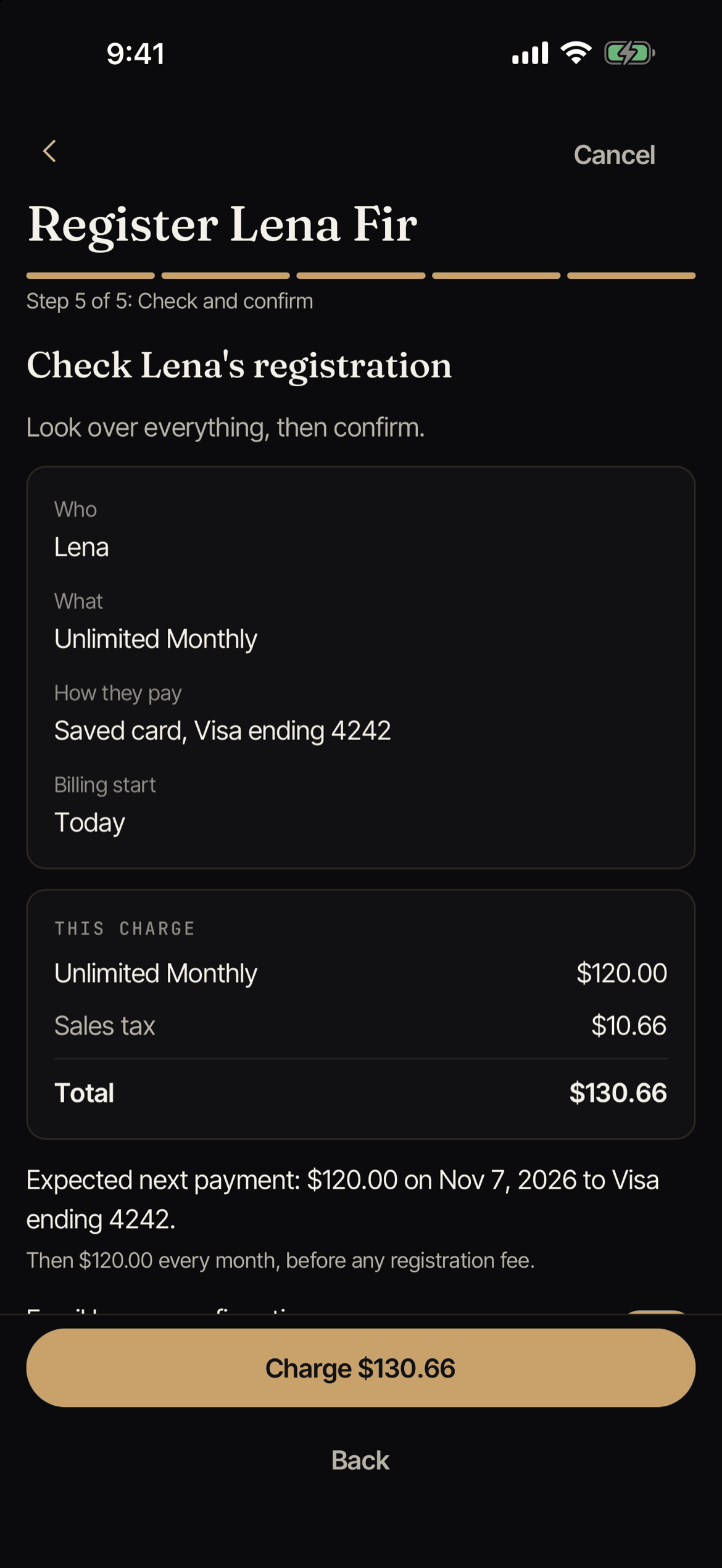
Step 4: Check and confirm
Look over Who, What, How they pay, and Billing start. You see Total today, and for a membership what it costs after that. The total may include a Registration fee and tax.
You can turn on the option to email the student a confirmation. A membership paid by card always gets a welcome email.
Tap the confirm button. It says Charge with the amount, Save and start billing later, Record payment and register, or Register for free. For a card charge or a free registration, your phone or tablet asks you to confirm it is you first. If the studio turned off the device check for this device, it does not ask. See Device settings.
After you confirm
You see a message that the student is registered, and what happened, for example how much was charged to which card, or that the payment was recorded. Choose Done, Register for something else, See payments, or go back to the student.
If the answer does not come back, for example because your signal dropped, Backstage says We could not confirm it. It does not send the request again. Open the student’s page and check before you try again, so nobody is charged twice.
If the card is declined, nothing is saved. Choose another card or another way to pay.
What to do on the web instead
Backstage does not change the price, take off the registration fee, or send a payment link. To do those, use Atelier Studio on the web.