
For studios · Backstage App
Device settings and the device check
Settings that belong to one phone or tablet, and how to turn off the Face ID or passcode check before money actions on a shared device.
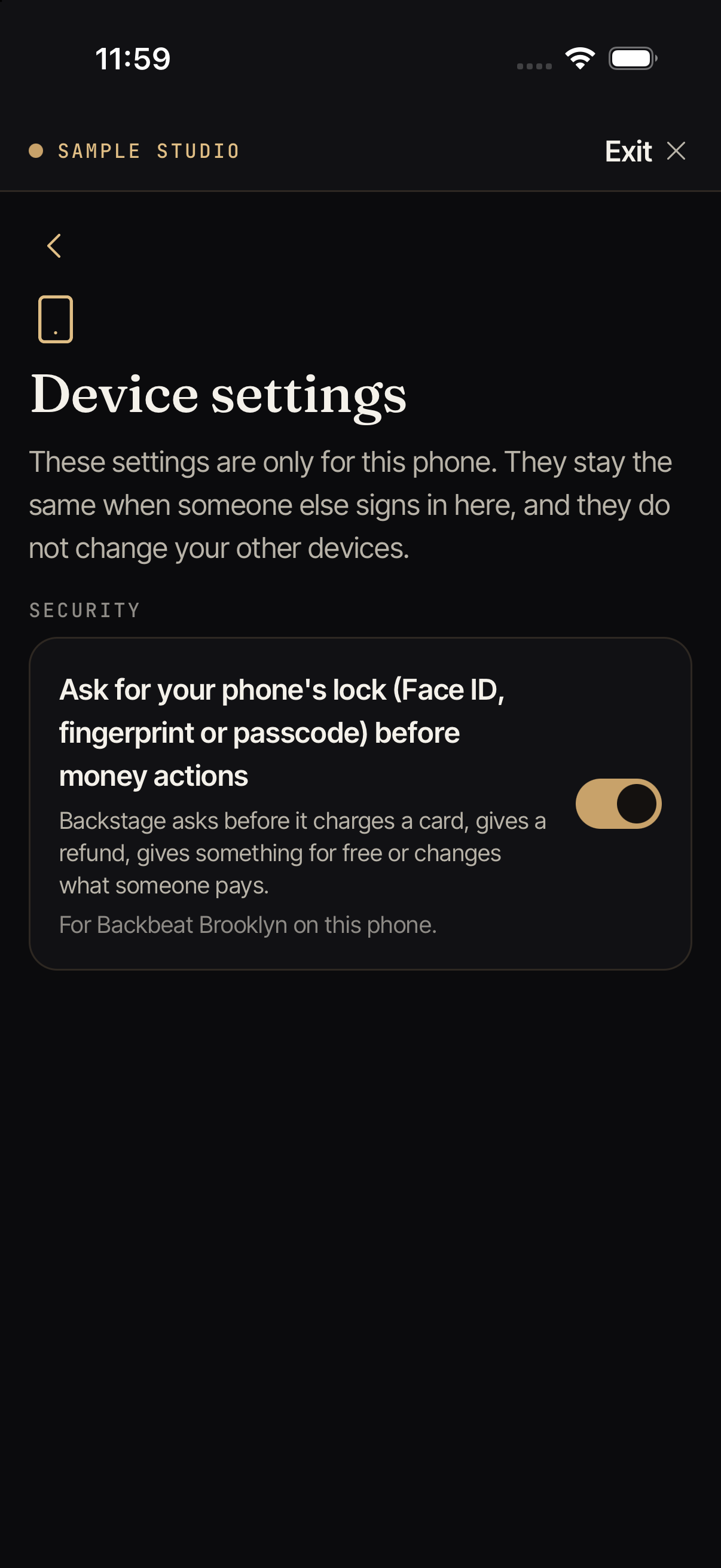
Device settings holds settings that are only for the phone or tablet you are holding. They stay on that device. They do not follow you to your other devices, and they stay the same when someone else signs in on the device.
To open it, tap More, then Device settings under This device. On a tablet you can also tap your picture at the bottom of the side rail.
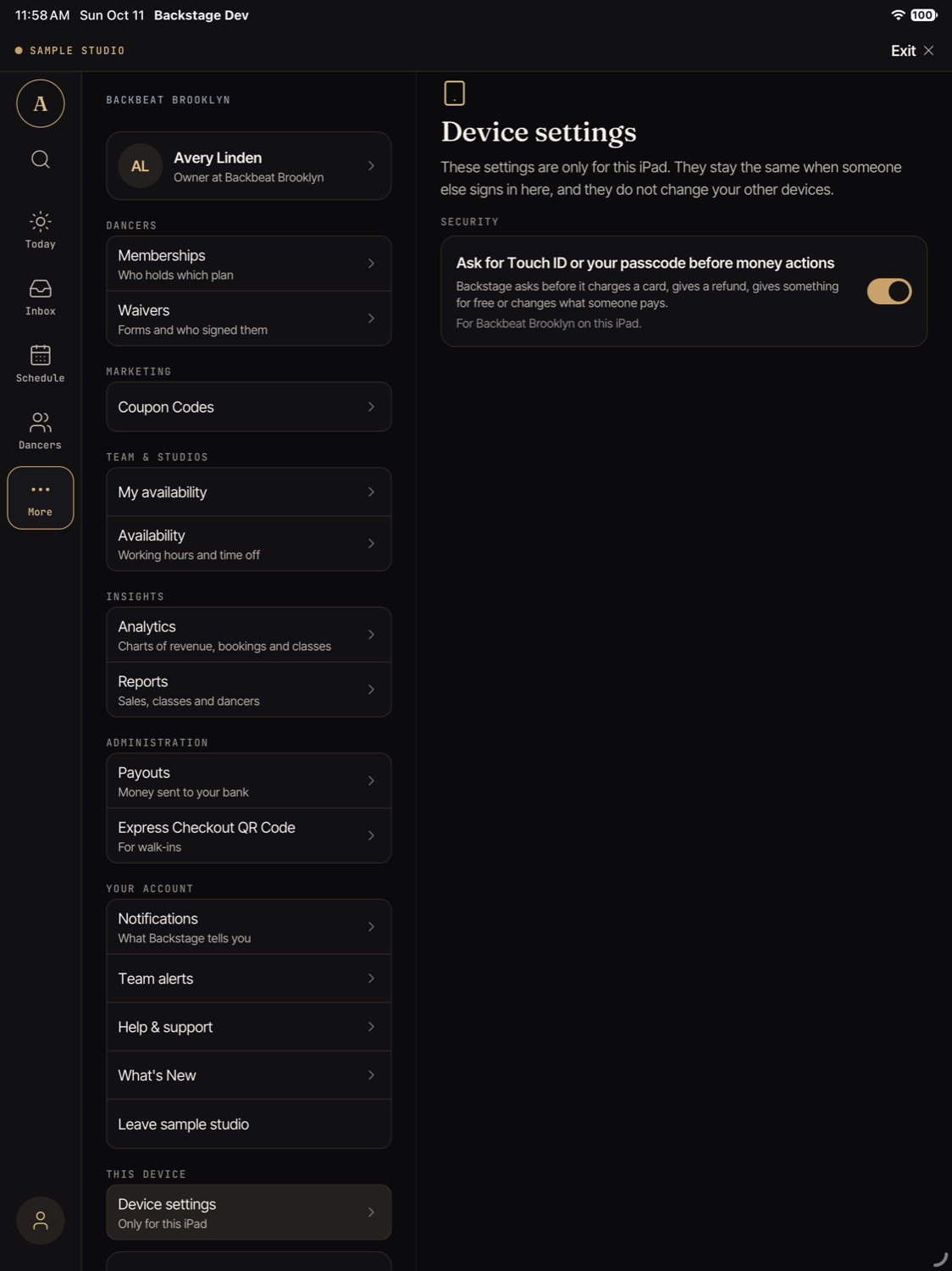
Your own settings, like Notifications and Team alerts, stay under Your account. They follow you, not the device.
The device check
Before some actions that move money, Backstage asks the person to prove it is them. It uses Face ID, Touch ID, a fingerprint, or the passcode of the device. We call this the device check. It is on by default, on every phone and tablet.
The switch in Device settings is named Ask for … before money actions. The words in the middle match your device, for example “Touch ID or your passcode” on an iPad, or “your phone’s lock (Face ID, fingerprint or passcode)” on a phone.
Why you might turn it off
A phone belongs to one person. A front-desk iPad does not. Everyone at the desk knows its passcode, so the check proves very little, and it adds a step to every charge. On a computer, your team charges a card with one button. If you want the same on a shared tablet, you can turn the check off for that tablet.
What the check covers
When the switch is on, Backstage asks before it:
- charges a card, including a private lesson charge
- gives a refund, store credit, or class credits
- gives a class or a product for free
- records cash or a check for less than the list price
- changes what a member pays, or cancels a membership with a refund
- removes someone from a class, lowers the number of spots, or cancels a class
- saves a card, removes a card, or records that a customer agreed to a card charge
- lets a student into a class even though the skill rule says no
When the switch is off, these actions run with your own button press, just like on a computer. Any confirm screen that already exists, like “Are you sure?”, still shows. Nothing about your permissions changes. People still only see and do what their role allows.
What is always checked
Some actions are about who can get into the account, not about a quick charge. Backstage always asks for the device check for these, even when the switch is off:
- adding a sign-in with Apple or Google
- changing a password
- changing the phone number that receives sign-in codes
- letting Atelier support open your studio
- deleting a student
Turn the check off
- Open Device settings and tap the switch.
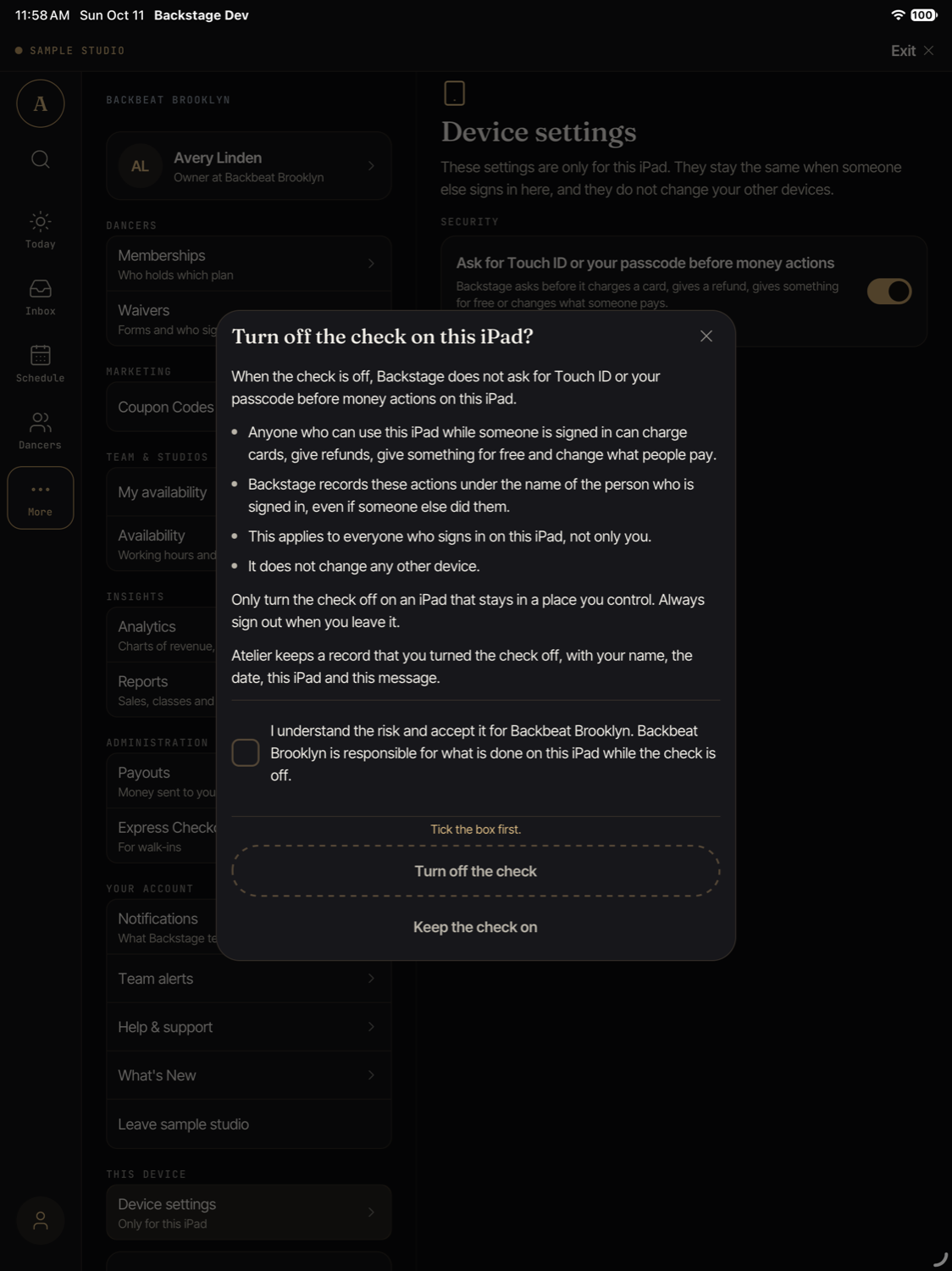
- Read the warning. It explains what changes:
- Anyone who can use the device while someone is signed in can charge cards, give refunds, give something for free, and change what people pay.
- Backstage records these actions under the name of the person who is signed in, even if someone else did them.
- It applies to everyone who signs in on this device, not only you.
- It does not change any other device.
- Tick the box that says you understand the risk and accept it for your studio. Until you tick it, the Turn off the check button says “Tick the box first.”
- Tap Turn off the check. The device asks for Face ID, Touch ID, or the passcode one last time, to show that it is really you.
- Backstage saves your choice, then turns the check off and says “The check is off on this device.”
If Backstage cannot save your choice (for example, there is no connection), the check stays on and you see “We could not save your choice, so the check is still on. Check the connection and try again.” Nothing is turned off first and saved later.
What Atelier records
When you turn the check off, Atelier keeps a record that your studio accepted the risk. The record has your name, the date and time, the device, and the exact warning you saw. It is never changed or deleted. It is a record of what your studio agreed to. The device itself decides whether it asks for the check.
By turning it off, your studio is responsible for what is done on that device while the check is off.
Use it with care
- Only turn the check off on a tablet that stays in a place you control, like behind your front desk.
- Always sign out when you leave the device.
- Only give billing access to people you trust with the studio’s money.
Turn the check back on
Anyone who is signed in on the device, at that studio, can turn it back on at any time. There is no warning and no device check, because it is the safer choice. It works right away, even with no signal. Backstage says “The check is on again” and asks for the device check before money actions again.
Good to know
- It is for this device and this studio. Turning the check off for one studio does not turn it off for another studio on the same device. If you switch to another studio, the check is on there until someone with the right role turns it off there.
- You can see if it is off. In Device settings, the switch shows when the check was turned off and who turned it off. Backstage does not show a message at sign-in.
- It starts on again after you delete and reinstall the app, clear the app’s data on Android, or set up a new device from a backup. A turned-off check never moves to another device.
- These do not change it: signing out, updating the app, switching studio, or someone else signing in.
- The sample studio shows Device settings too, but your choice there is not saved.
- Phones too. Every phone has the same switch with the same warning. Most owners will leave it on for their own phone.
- Not seen in the app yet: a list of which devices have the check off, and a way for an owner to turn it back on from another device. Atelier is not offering these yet.