
For studios · Backstage App
Today and check-in
See your day at a glance, find out what needs you, and check people in from your phone or tablet.
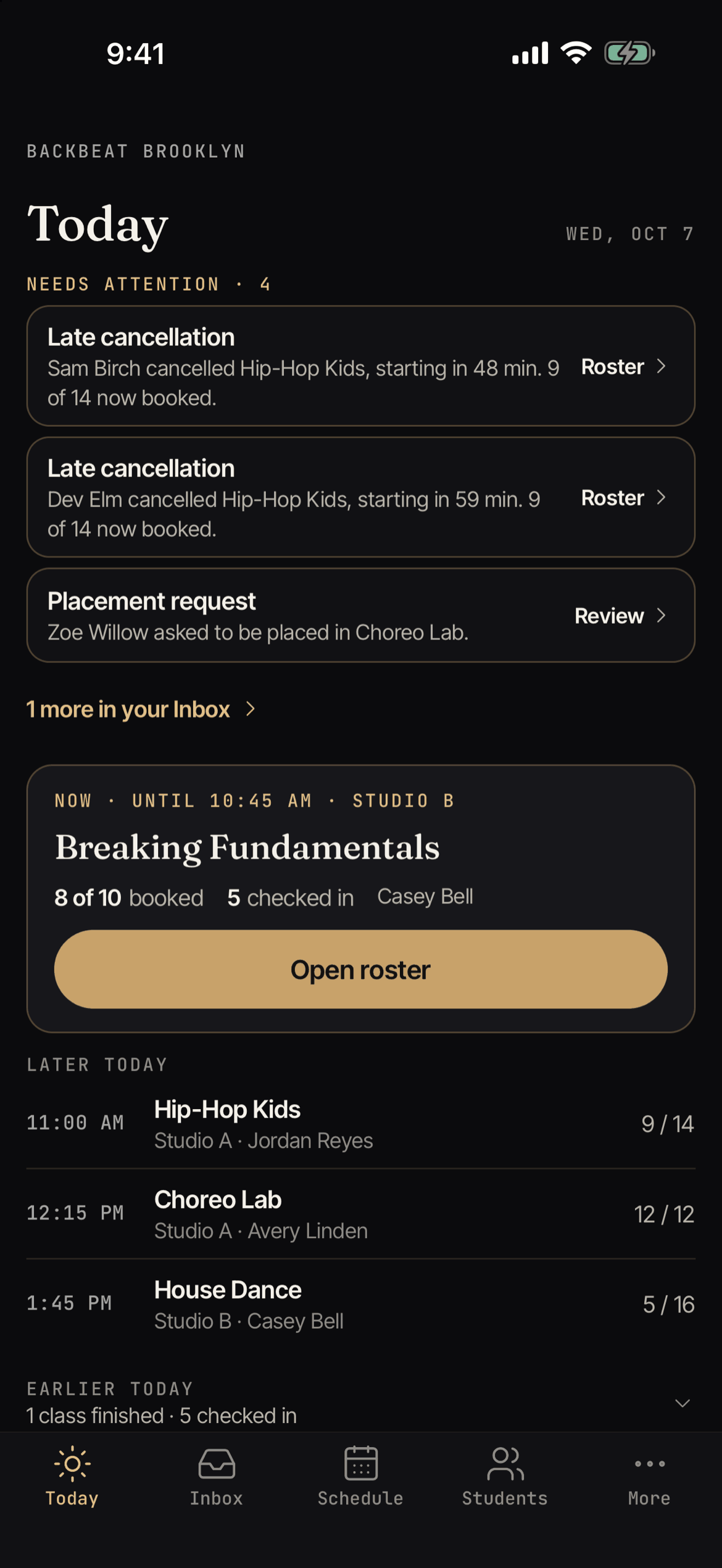
Today is the first tab in Backstage. It shows the classes happening today, what needs your attention, and a few numbers for the month.
What you see on Today
- My classes / All classes: switch between only your classes and every class at the studio.
- Needs attention: things that need a person, like a class roster, a waitlist, or a request to review. Tap one to open it. If there are more, tap more in your Inbox.
- Now or Next: the class on right now, or the next one. Tap Open roster to go straight to the class list. You also see how many are booked, on the waitlist, and checked in.
- Later today and Earlier today: the other classes. Tap one to open its roster.
- Today so far: Booked, Checked in, and Sales. Sales are shown to people who have report access.
- This month: Total revenue, Total bookings, Fill rate, and Active students.
If there are no classes, you see “No classes today.” If other classes are on but none are yours, tap Show all classes.
Check someone in
- Open a class. Tap it on Today or Schedule.
- On the roster, find the person under Still to arrive.
- Tap the check-in control next to their name.
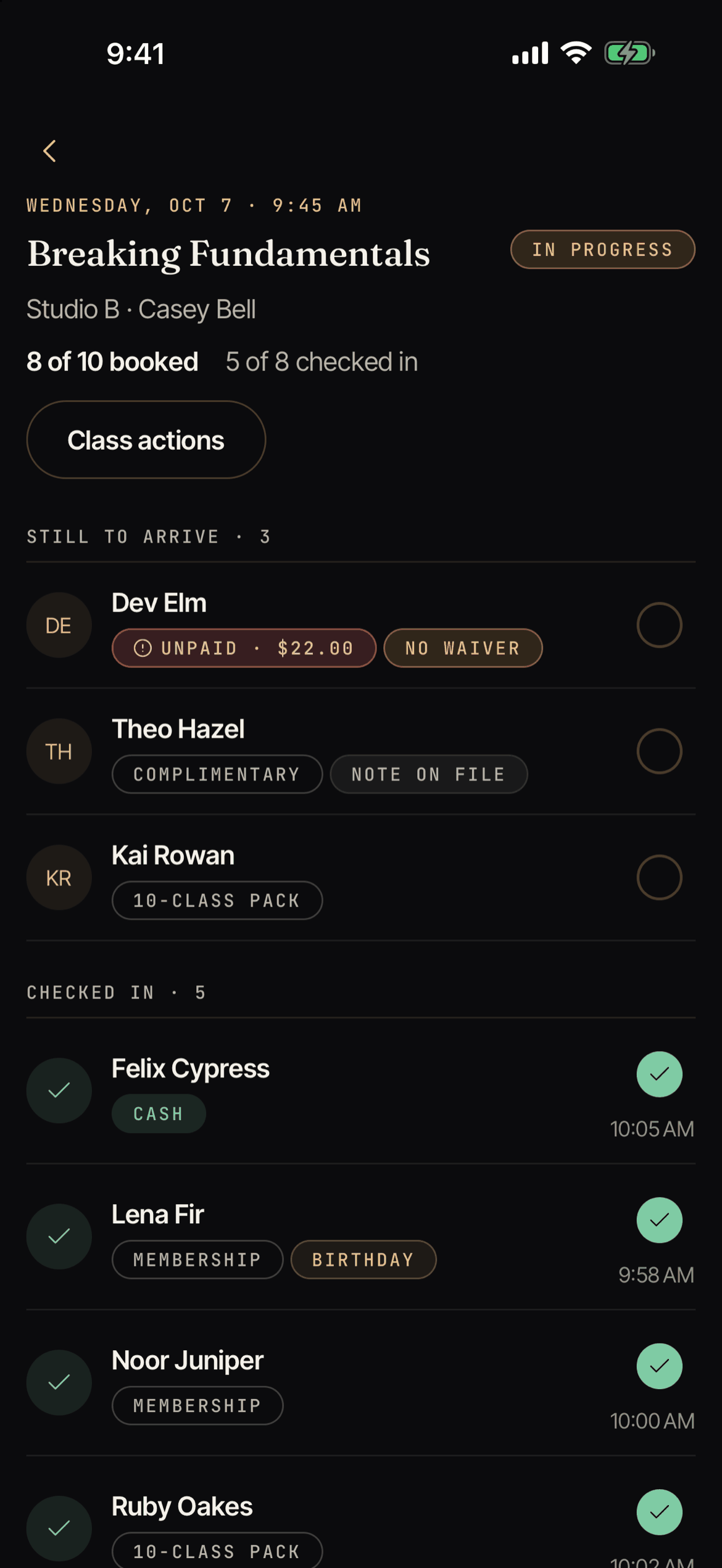
If everything is paid or covered, they are checked in right away. If they still owe money, a Check In sheet opens and shows you how to settle it first.
Checked-in people move to Checked in. Made a mistake? Open the person’s menu and tap Undo check-in. You can also tap Mark no-show.
Taking payment at check-in
When a person owes money, the Check In sheet shows the total. It may include a Registration fee and Sales tax. To change a fee, use Atelier Studio on the web. You can choose:
- Charge a card on file. Backstage asks your phone to confirm it is you first. On a tablet where the studio turned off the device check, there is no extra step. See Device settings.
- Record offline payment for cash, check, Venmo, and other ways to pay.
- Apply membership / pack to use one of their classes.
- Mark complimentary to give it free.
- Check in without payment. They are checked in, and the class stays unpaid.
Taking payment and giving something free need billing access. Without it, the sheet says “Ask someone with billing access”.
Before a card is charged, tick the box that says the customer is here and agrees to the charge, if the card needs it. A card that the customer saved themselves may show Needs their OK to charge here.
Other things on the roster
Tap the menu next to a person to see actions such as View student, Check in, Charge saved card…, Record offline payment, Mark complimentary, Apply membership / pack, Call or text, and Remove from class. On a tablet, Call or text shows the phone number with a Copy button instead. On the Waitlist view, you can Promote into class or Remove from waitlist.
Small tags on each row help you: First class, Birthday, No waiver, Note on file, and Unpaid.
When you have no signal
Check-ins work without a connection. If you are offline, Backstage shows No connection. Check-ins are saved on your phone or tablet and sent when you are back online. A person with a saved check-in shows Waiting to send. You can cancel a check-in that is still waiting.
Payments need a connection. Backstage never takes a payment offline.
If the studio does not accept a saved check-in, for example because the booking was cancelled in the meantime, you see check-in was not saved with the reason. Tap Check in again if the person is here.
Express checkout QR code
Open More, then Express checkout QR code. Hold your phone or tablet up at the front desk. Walk-in customers scan the code with their camera to see today’s classes and book. Read more in Express Checkout.