
For studios · Backstage App
Run your front desk on an iPad
Use Backstage on an iPad or Android tablet to check people in, take payment, and run the day without a computer.
Backstage works on an iPad or an Android tablet, not only on a phone. Give the front desk a tablet and the team can check people in, take payment, look up a student, and answer the Inbox, with no computer. Owners can do the same from a phone or a tablet, from anywhere.
On a bigger screen, Backstage shows more at once. You do not learn a new app. The same screens and the same buttons are there, just side by side.
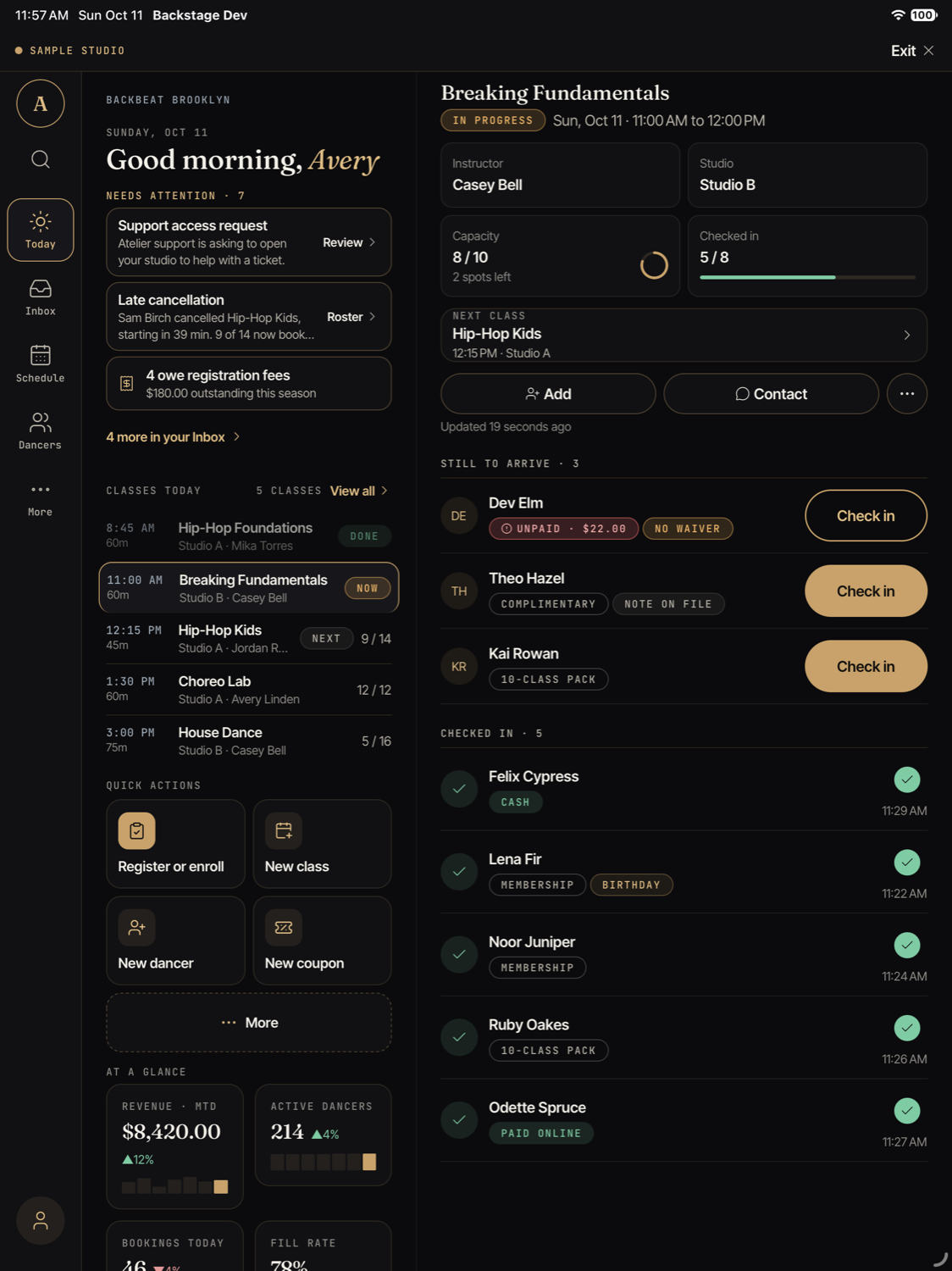
What changes on a tablet
A side rail instead of tabs
On a phone, Today, Inbox, Schedule, Dancers, and More are tabs at the bottom. On a wide tablet screen they move to a slim bar on the left side, called the side rail. It has the same five places in the same order.
The rail also has:
- Search at the top. Tap it to search for a student or a class.
- Your picture or initial at the bottom. Tap it to Sign out when you hand the tablet to the next person, or to open Device settings.
If your tablet screen is smaller or narrow (for example when another app shares the screen), Backstage keeps the tabs at the bottom, with a wider layout.
Today: the day and the roster together
On Today, the day is on the left. You see what needs your attention, the classes for today, your quick actions, and a few numbers. The roster of the class that is on now (or the next one) is on the right.
- Tap another class on the left. Its roster opens on the right, right away.
- Tap Check in next to a name. If everything is paid or covered, the person moves to Checked in at once.
- Under the class title, Next class opens the next roster in the same place.
- The Add button, Contact, and the … menu are above the roster.
If you are in the middle of checking people in, Backstage does not switch to a new class on its own.
Schedule, Dancers, Inbox, and More side by side
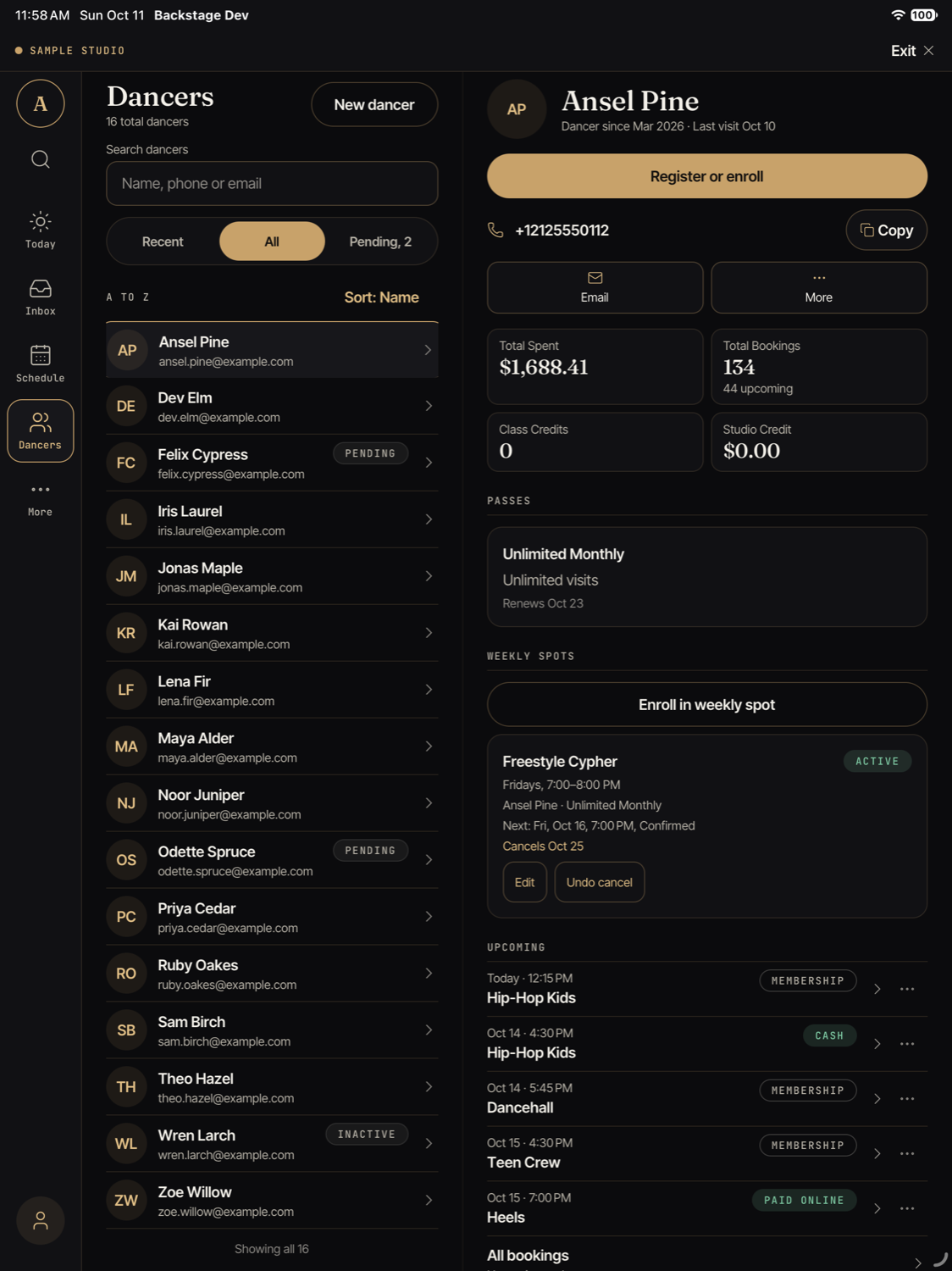
The other places work the same way: a list on the left and the details on the right.
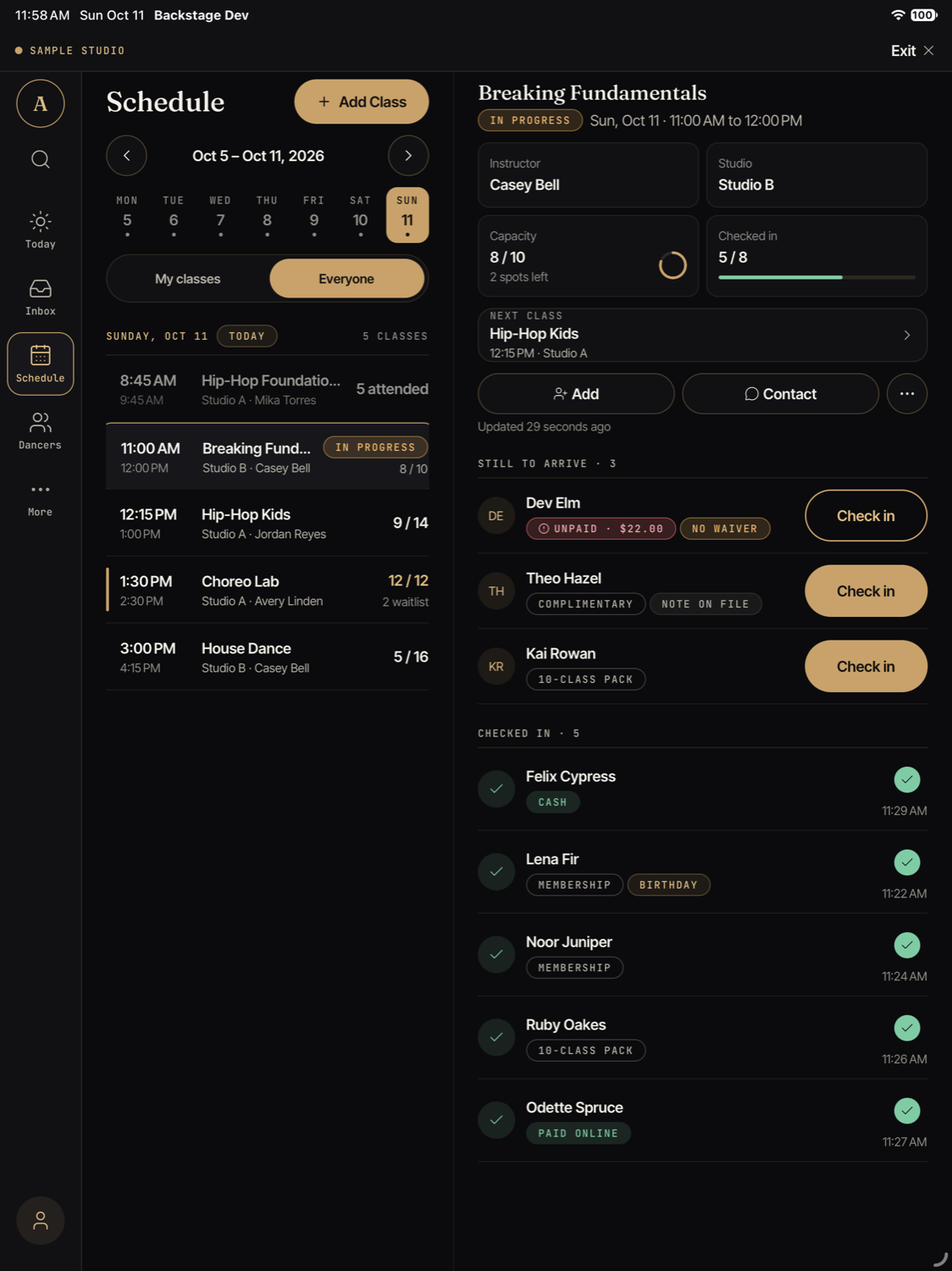
- Schedule: pick a day and a class on the left. The roster opens on the right.
- Dancers: search and pick a student on the left. Their page opens on the right, with passes, weekly spots, and upcoming classes. Tap a card to see more details in the same place. Your studio may use a different word, like Students or Members.
- Inbox: pick a message on the left. Read it and tap Approve, Deny, or Got it on the right.
- More: pick a page on the left. It opens on the right.
Taking payment
When someone still owes money, tap Check in. A payment panel opens over the roster. The total is large and the Charge button is easy to hit. You can also use a class pack, mark it complimentary, or record cash or check, just like on a phone. Read more in Today and check-in.
On a large iPad held sideways, the panel opens on the right and the roster stays visible next to it, so you can see who you are charging. On smaller screens the panel opens in the middle.
What is different from a phone
- No Tap to Pay. Apple does not offer Tap to Pay on iPad. You type in the card number instead. See Save a card.
- Call and Text become the phone number. A tablet usually cannot place a call. On a student’s page you see their number with a Copy button instead of Call and Text. Email works the same way when the tablet has no email app set up.
- Nothing else is added. A tablet shows the same actions as a phone. It never has more or less than your phone, only a different layout.
Turn it sideways
On an iPad or an Android tablet you can hold the screen the way you like: upright or sideways, in either direction. Backstage changes its layout right away and keeps the class or student you had open. Phones stay upright.
On Android tablets, this works on Android 10 and newer.
Tips for a shared front-desk tablet
- Everyone signs in as themselves. Backstage records every action under the name of the person who is signed in. Never share one sign-in.
- Sign out when you leave. Tap your picture at the bottom of the side rail, then Sign out. If some check-ins have not been sent yet, Backstage warns you first.
- Only give billing access to people you trust with the studio’s money. Read more about staff and roles.
- Turn on “Hide details on the lock screen” so a customer at the counter cannot read a name in an alert. See Notifications.
- Think about the check before money actions. By default, Backstage asks the person to confirm with Face ID, Touch ID, or the passcode. On a tablet that everyone at the desk uses, that step may not help much. You can turn it off for that tablet. Read Device settings first.