
For studios · Classes
Auto-enrollment
Let members keep their weekly class spot automatically, with no re-booking, and they don't lose their place when their membership renews.
If your members come to the same class every week, auto-enrollment keeps them in it automatically. They don’t re-book each week. And, the part that usually trips people up on other platforms, they don’t lose their spot when their membership renews. It’s included on every plan.
Turning it on for a class
Auto-enrollment is set per recurring class, so you decide which classes fill automatically. Open Classes → Recurring Schedule, open the schedule you want, and switch on Allow auto-enroll. It’s on by default for new recurring classes. Switch it off for any class you’d rather keep open to fresh bookings each week.


It builds on your recurring classes, the same weekly schedule that already fills your calendar.
How members join
There are three easy ways someone ends up auto-enrolled, whichever fits the moment:
- They opt in after booking. Right after a member books the class with their membership, Atelier Studio asks if they’d like to come every week. One tap and they’re set.
- They opt in after buying a membership. When a customer buys a membership on your booking page, they’re offered a weekly spot right then. They pick a class and it’s reserved from that point on.
- You set it up for them. See below. Handy for members who sign up in person, or when you’re getting someone started over the phone.
Members can pause or cancel their own auto-enrollments any time from their account, so day to day there’s little to manage.
Enrolling a member yourself
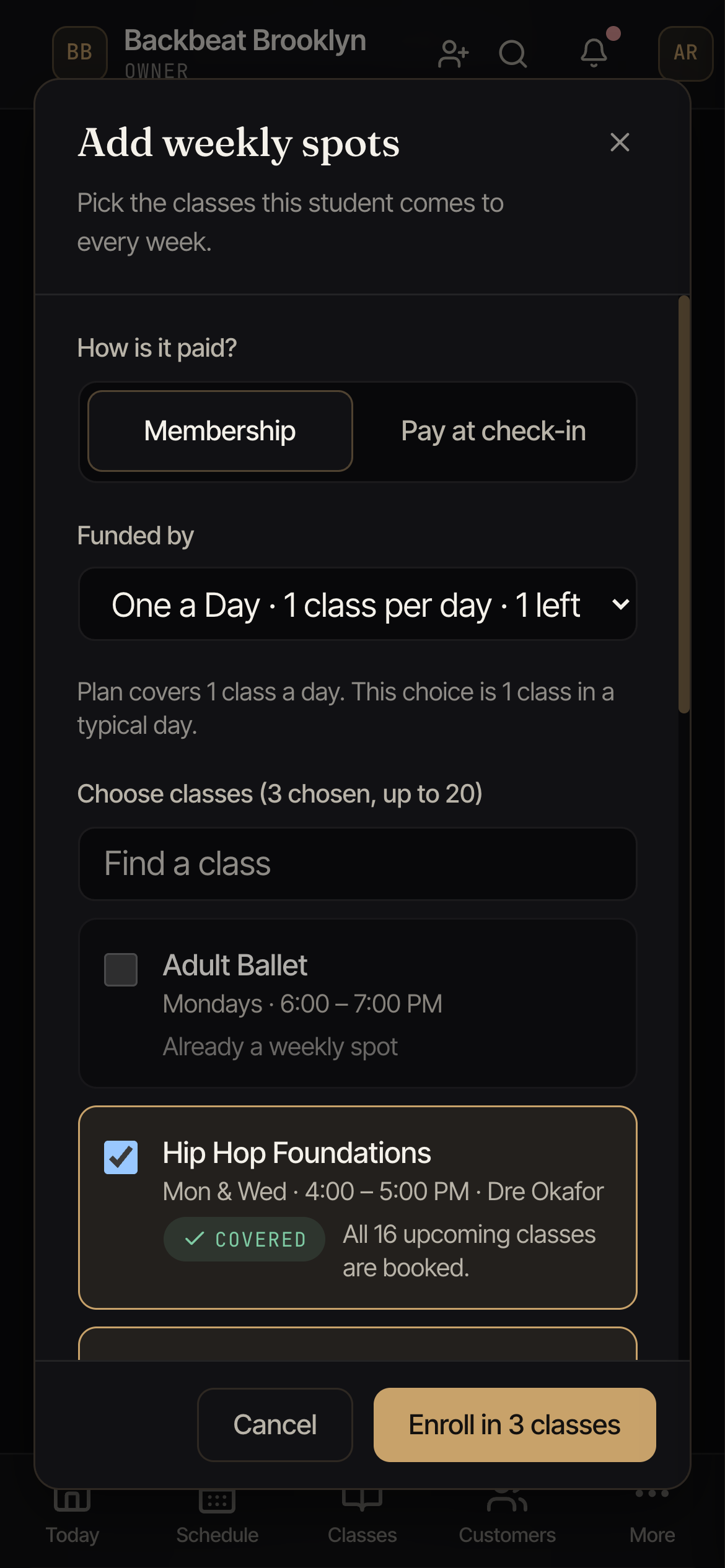
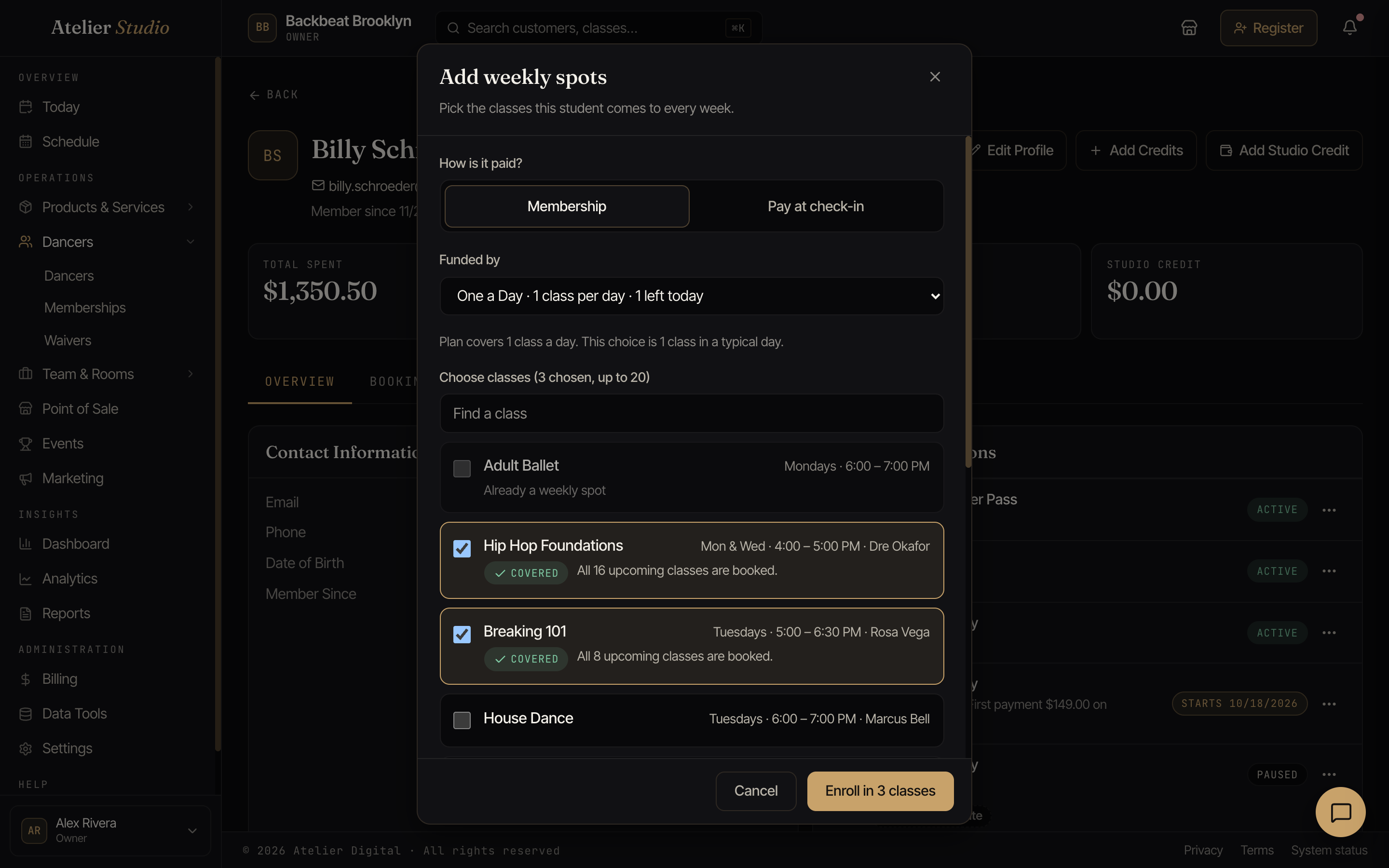
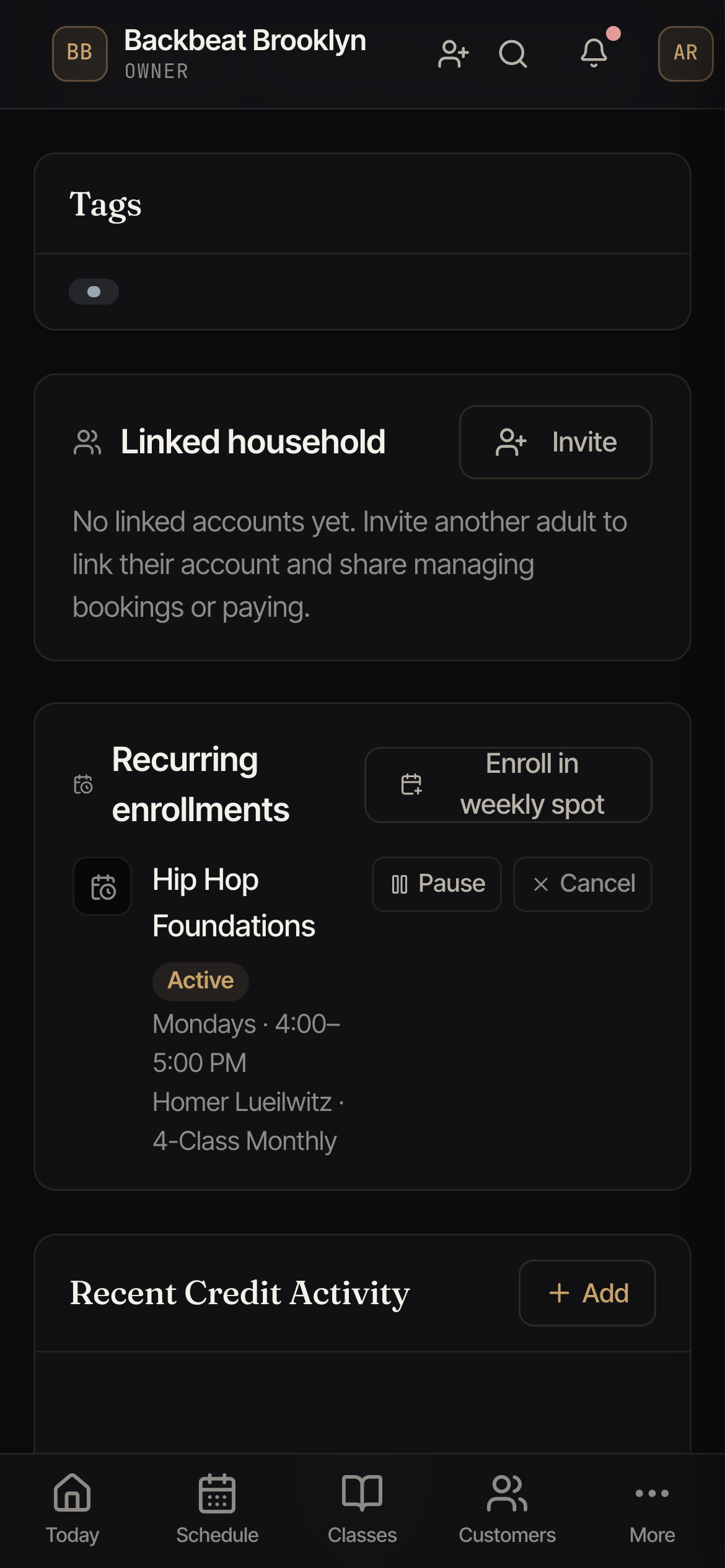
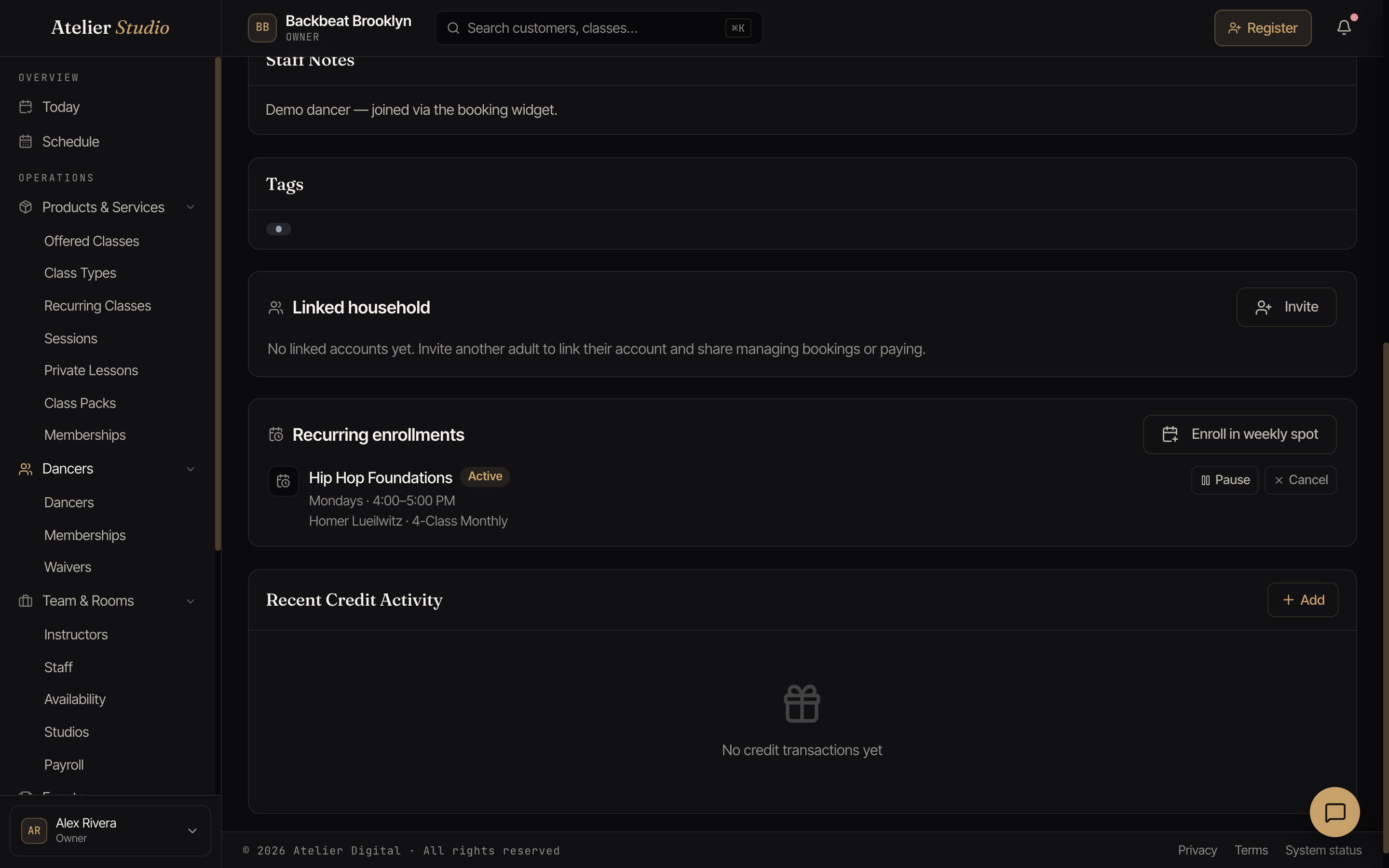
You don’t have to wait for a member to opt in. You can set up their weekly spots for them, and you can add several classes at once. Open their profile and, on the Overview tab, find the Recurring enrollments card. Select Enroll in weekly spot to open the Add weekly spots window. Then:
- Choose who is attending. If you look after a family on one login, pick the family member the spots are for, so a parent can get their child set up in one go.
- Choose how it is paid. Pick Membership (and, if they hold more than one, which one covers it) or Pay at check-in. One choice covers every class in this window. To fund some classes one way and some another, add them in two rounds.
- Tick the classes. Tick as many recurring classes as you need, up to 20 at a time. You can search by name. A class that is already a weekly spot for that student is greyed out and says so (for a paused spot it says “paused”), and with a membership chosen, a class the membership does not cover says Not covered.
- Read the check. Under the list, Atelier Studio shows what will happen before you save: for a membership it says what the plan covers (for example “Plan covers 2 classes a week. This choice is 2 classes a week.”), and each class shows whether its upcoming classes will be booked, held until the plan renews, or put on the waiting list. Nothing is saved yet.
- Select Enroll in N classes. Everything is saved together. If anything cannot be saved, nothing is saved, so you never end up with half a set.
Either way, nothing is charged at the moment you enroll them. A Pay at check-in spot is charged each week when you check the student in.
When you choose more than the plan covers
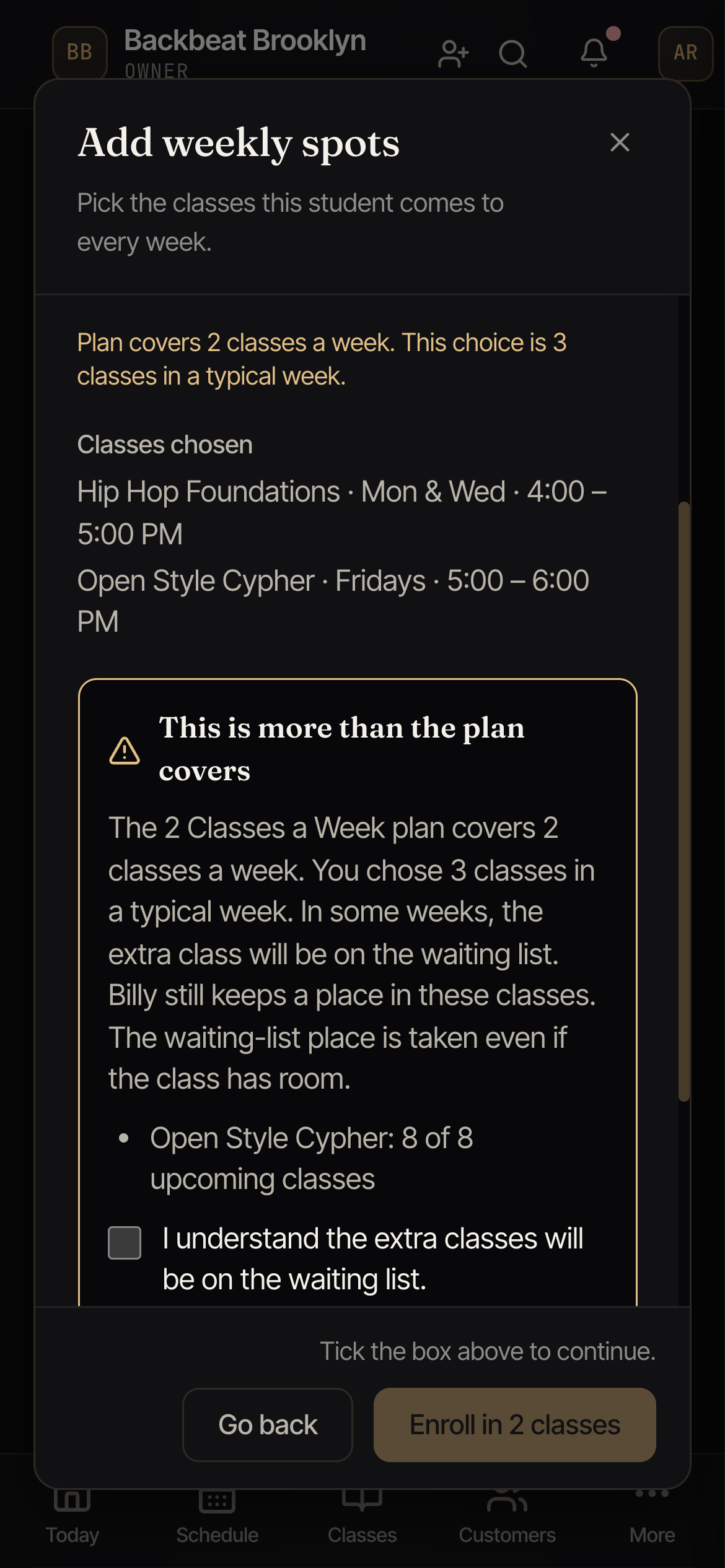
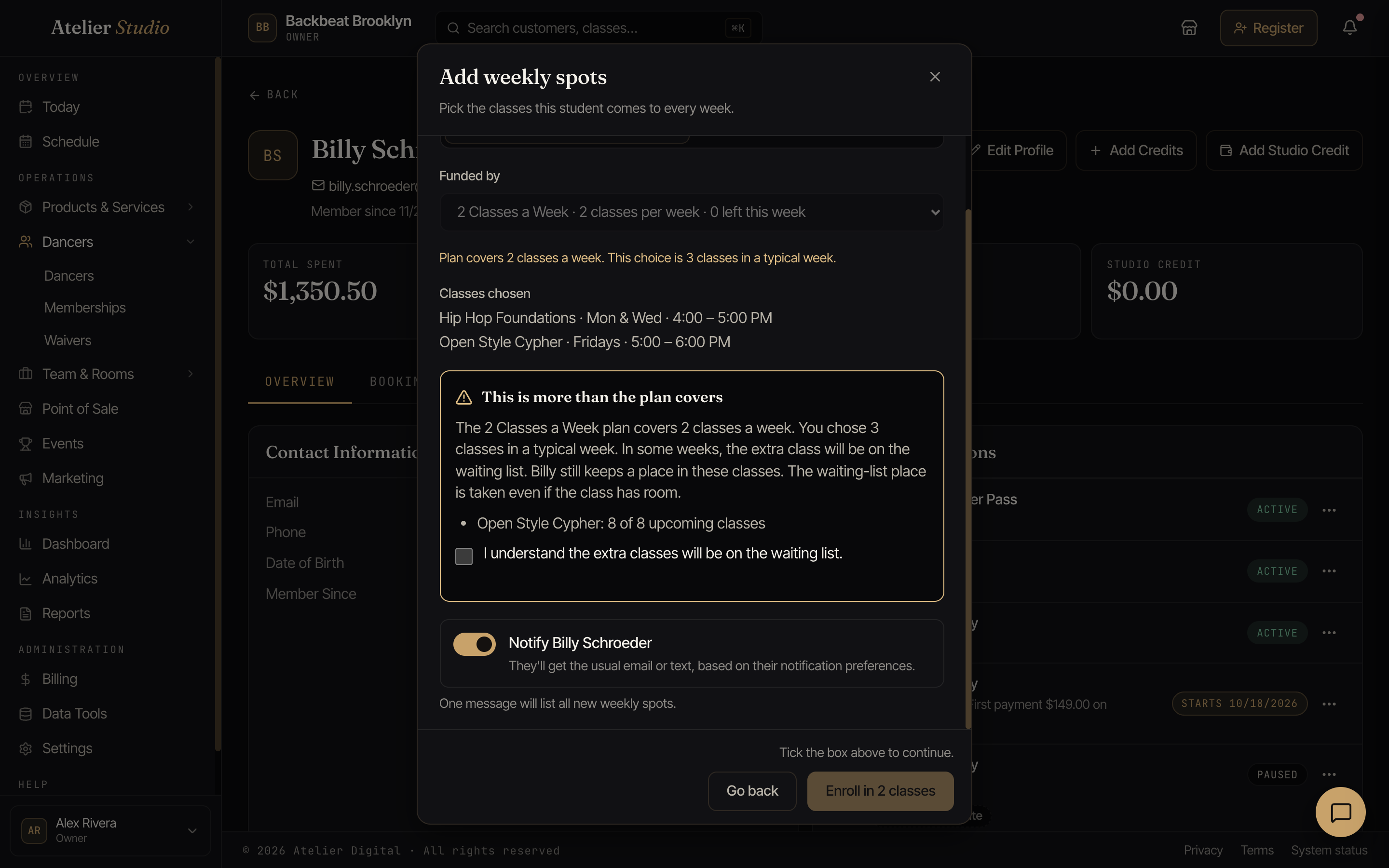
A membership can cover a set number of classes a day, a week, or a billing period. If your picks add up to more than that, Atelier Studio does not stop you. It shows This is more than the plan covers and explains that, in some weeks, the extra class will be on the waiting list. The student still keeps a place in these classes, but the waiting-list place is taken even if the class has room. Tick I understand the extra classes will be on the waiting list to go on. When two classes share the limit, the one with the earlier class date gets it first.
When two classes are at the same time
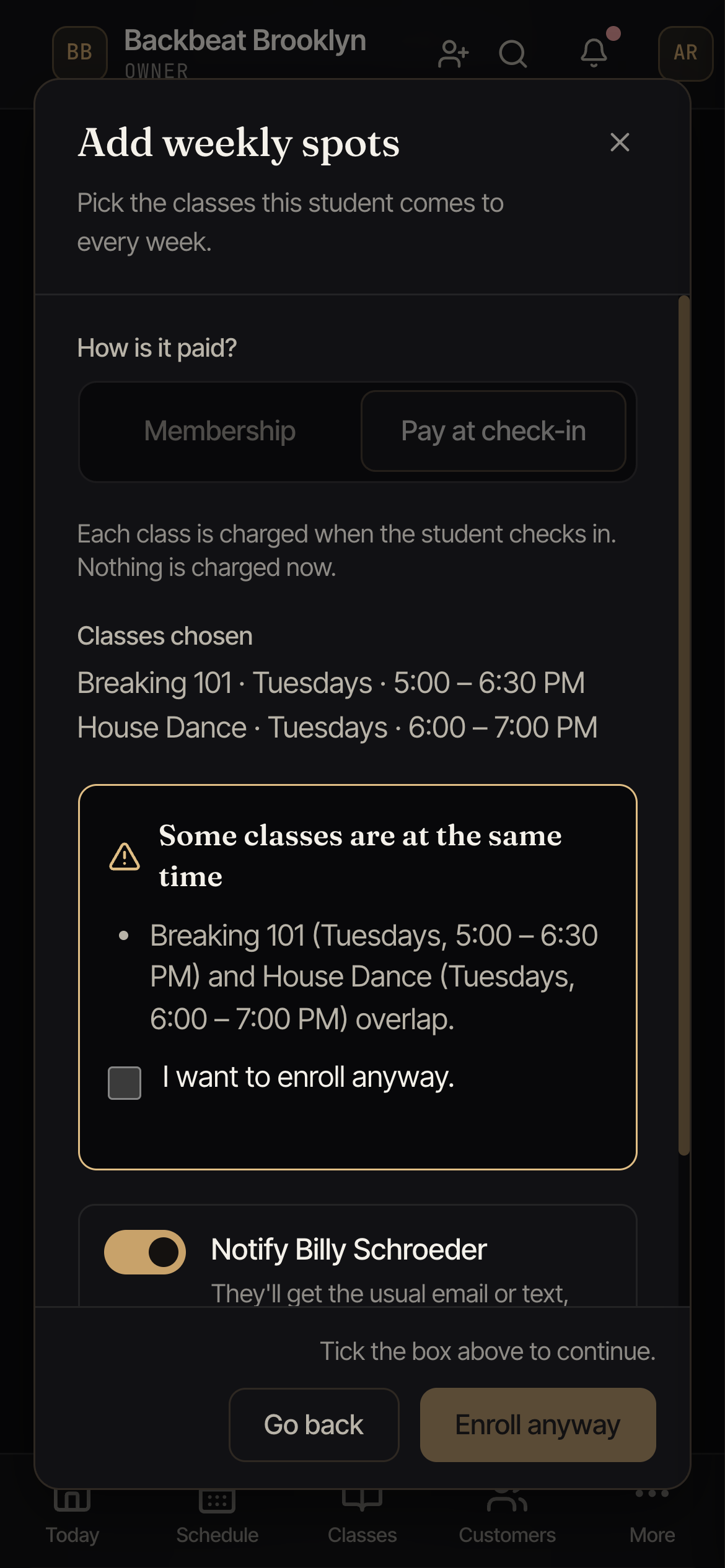
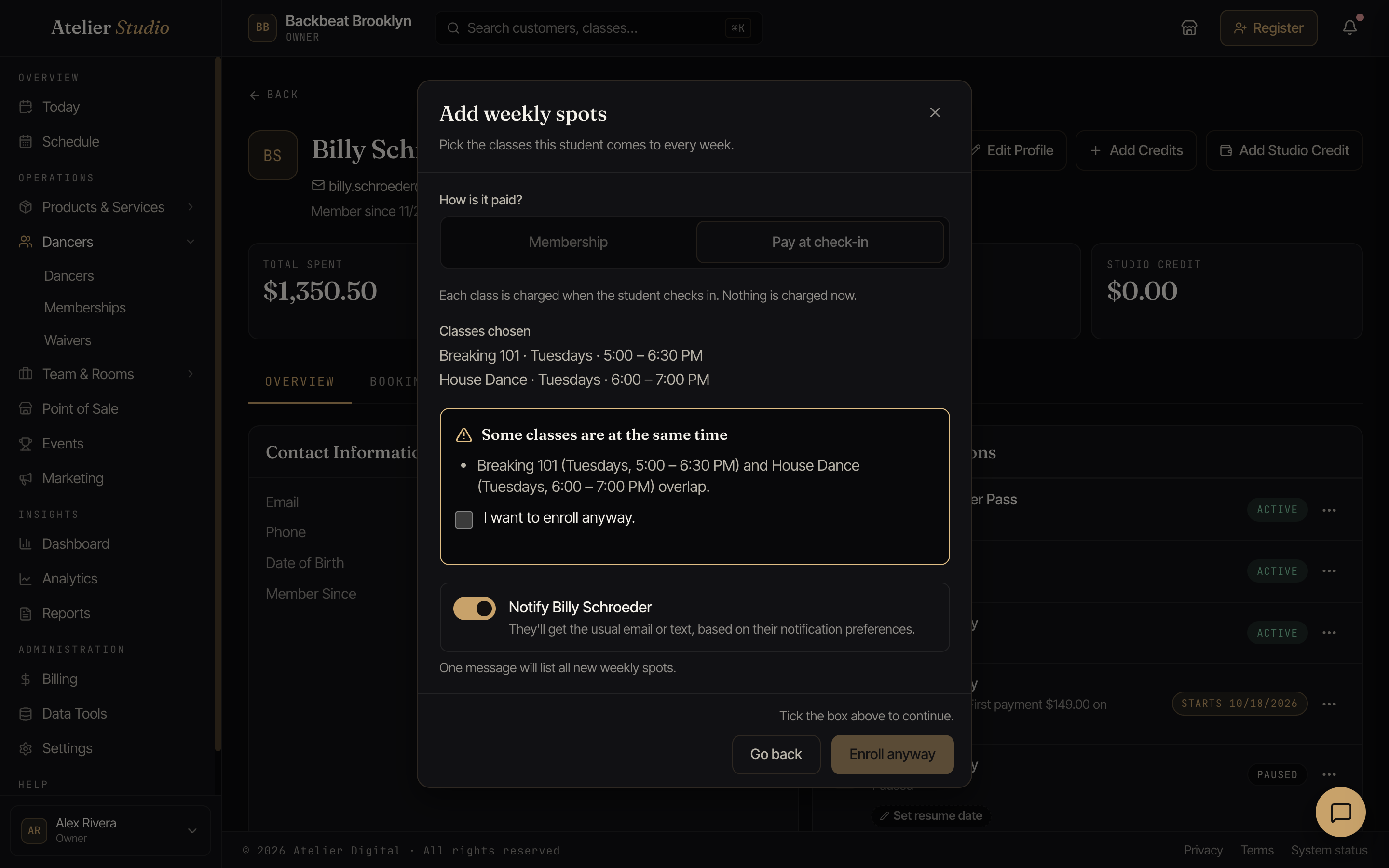
If two classes you ticked overlap, or one overlaps a weekly spot the student already has (a paused spot counts too), you see Some classes are at the same time with the pairs listed. Back-to-back classes are fine. Tick I want to enroll anyway if it is on purpose, or go back and change your picks. If both messages show, tick each box before you continue.
Right after you sell or grant someone a membership from the Register dialog, Atelier Studio offers to set up their weekly spots then and there, so you can do both in one pass. (If you scheduled their first payment for a future date, the spot waits until that first payment goes through, and they can opt in themselves once it does.)
The account holder gets one email confirming all the new weekly spots, listing each class, and one text too if your studio sends text messages, however many classes you added. To pause, resume, or cancel a spot later, use the same Recurring enrollments card: cancelling stops future auto-booked classes but leaves any already-booked sessions in place.
Your auto-enrollment policy
Two studio-wide settings control how auto-enrollment behaves. Open Settings → Policies and find the Auto-enrollment card:
- No-show pause: if a member misses their class several weeks in a row, their auto-enrollment pauses on its own so the seat frees up for someone else. You choose how many consecutive no-shows it takes (the default is three). The member is emailed when it pauses, and they can turn it back on whenever they like.
- No-show grace period: a window after a class ends before a missed class counts as a no-show. It protects members when the roster is reconciled late or someone checks in the next day: a late check-in clears the no-show and resets the count. The default is 48 hours.


These sit alongside your other booking policies.
”Awaiting renewal” on the roster
Each week, Atelier Studio books your auto-enrolled members into the upcoming class automatically, drawing on their membership. When a seat is held for a week that falls after a member’s membership renews, but that renewal hasn’t been charged yet, you’ll see a teal Awaiting renewal label next to their name on the class roster. The seat is theirs: once the renewal goes through, it’s confirmed. While a seat is awaiting renewal it stays reserved, so it isn’t offered to drop-in bookings.
A membership that is set to start on a later date works the same way. Until the start date, the seat shows a teal Awaiting start label and nothing is charged. Teal always means waiting: nothing is wrong. A Pay at check-in seat is teal too, until the class ends. If nobody has paid by then, the label turns red and says Unpaid. See what the status labels mean.


You’ll spot it the same place you run the class. See Bookings and check-in.
When a member’s plan is full
Auto-enrollment respects both the membership’s limits and the class capacity. If a member’s plan covers, say, one class a week and they’re auto-enrolled in more, the extra weeks go to the waitlist rather than over-booking their plan. If the class itself is full, the member is waitlisted just like anyone else.