
For studios · Customers
A customer's profile
Everything about one person: their history, passes, payments, notes, and contact details.
Open anyone from your directory to see their whole story in one place.
The top line
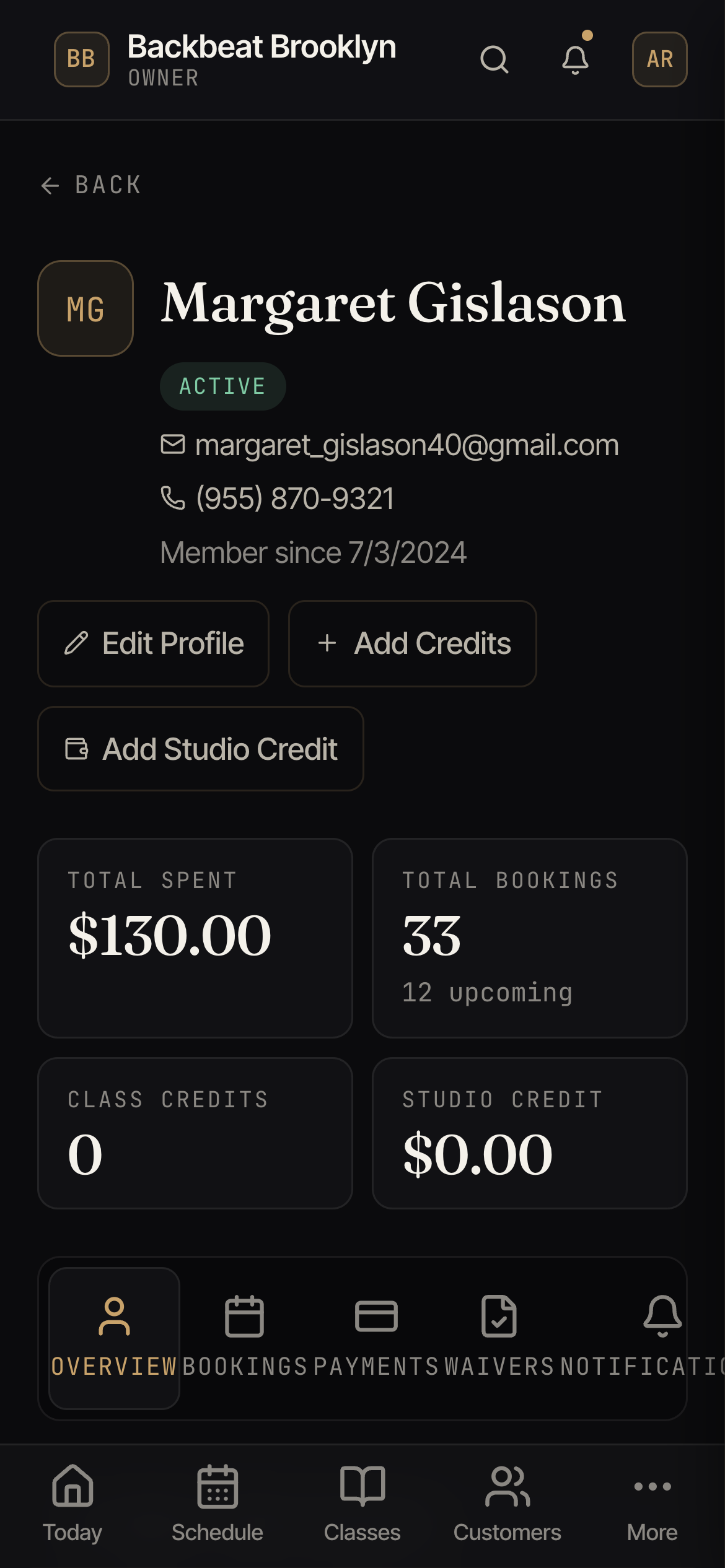
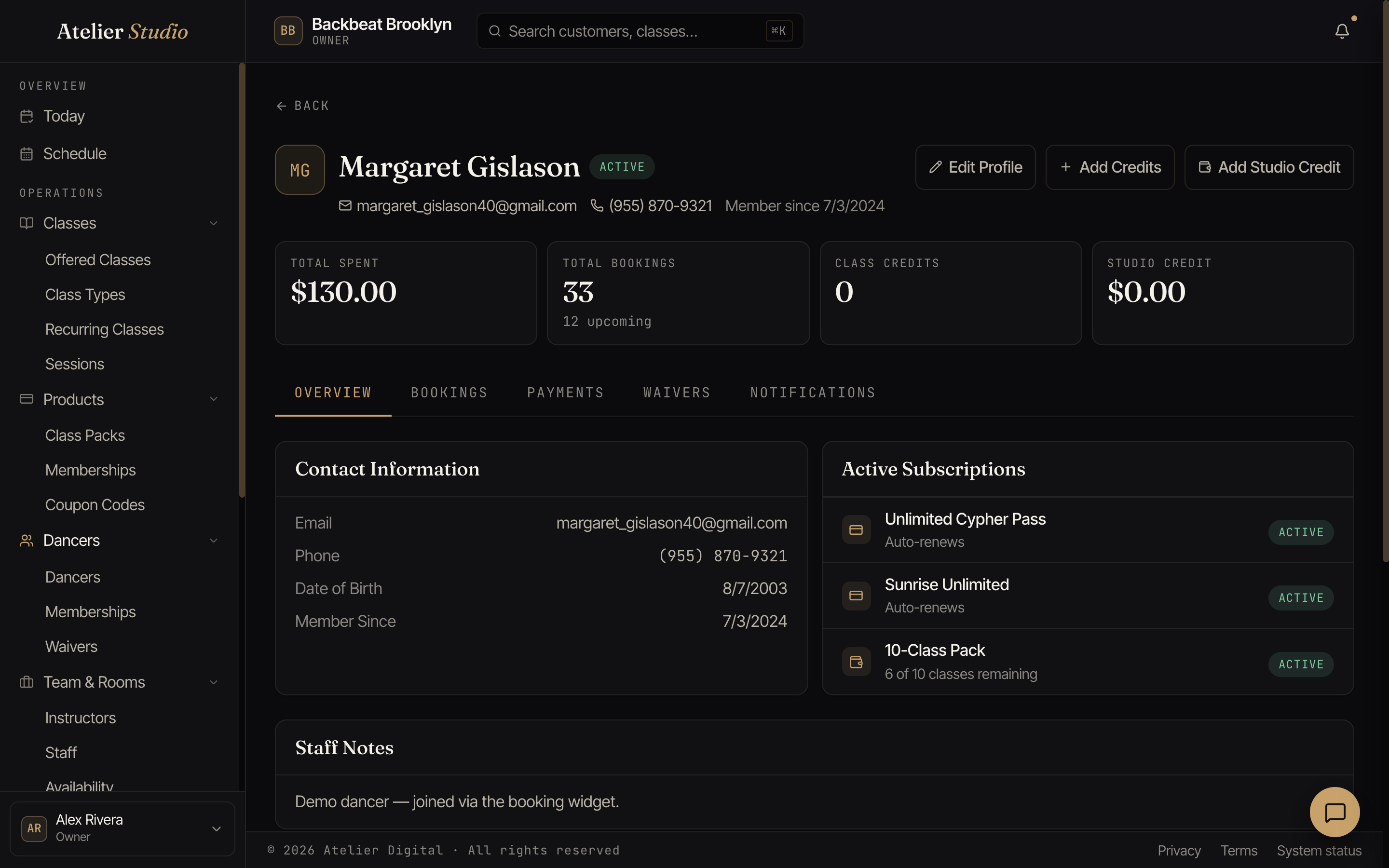
Across the top you’ll see the essentials: total spent, total bookings (and how many are upcoming), and any class credits or studio credit they hold.
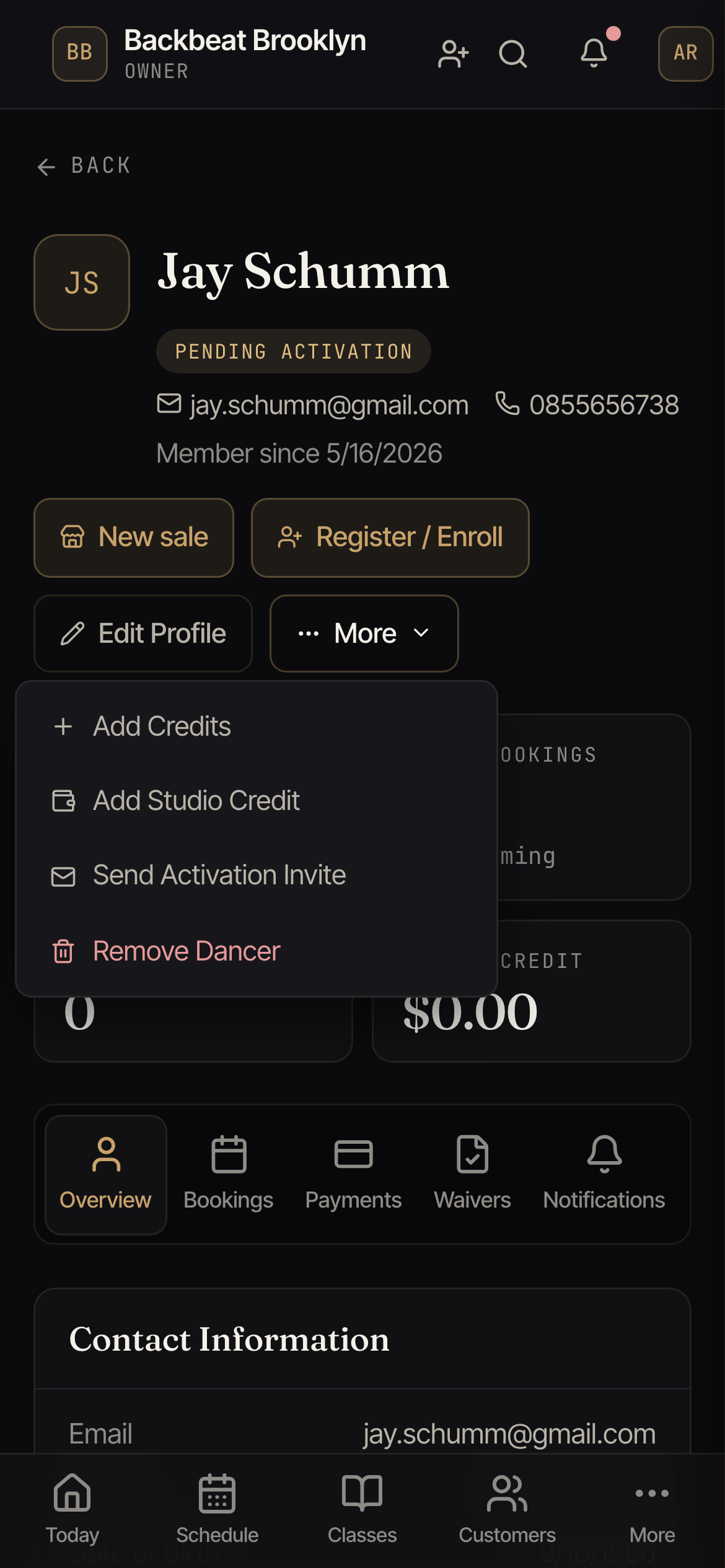
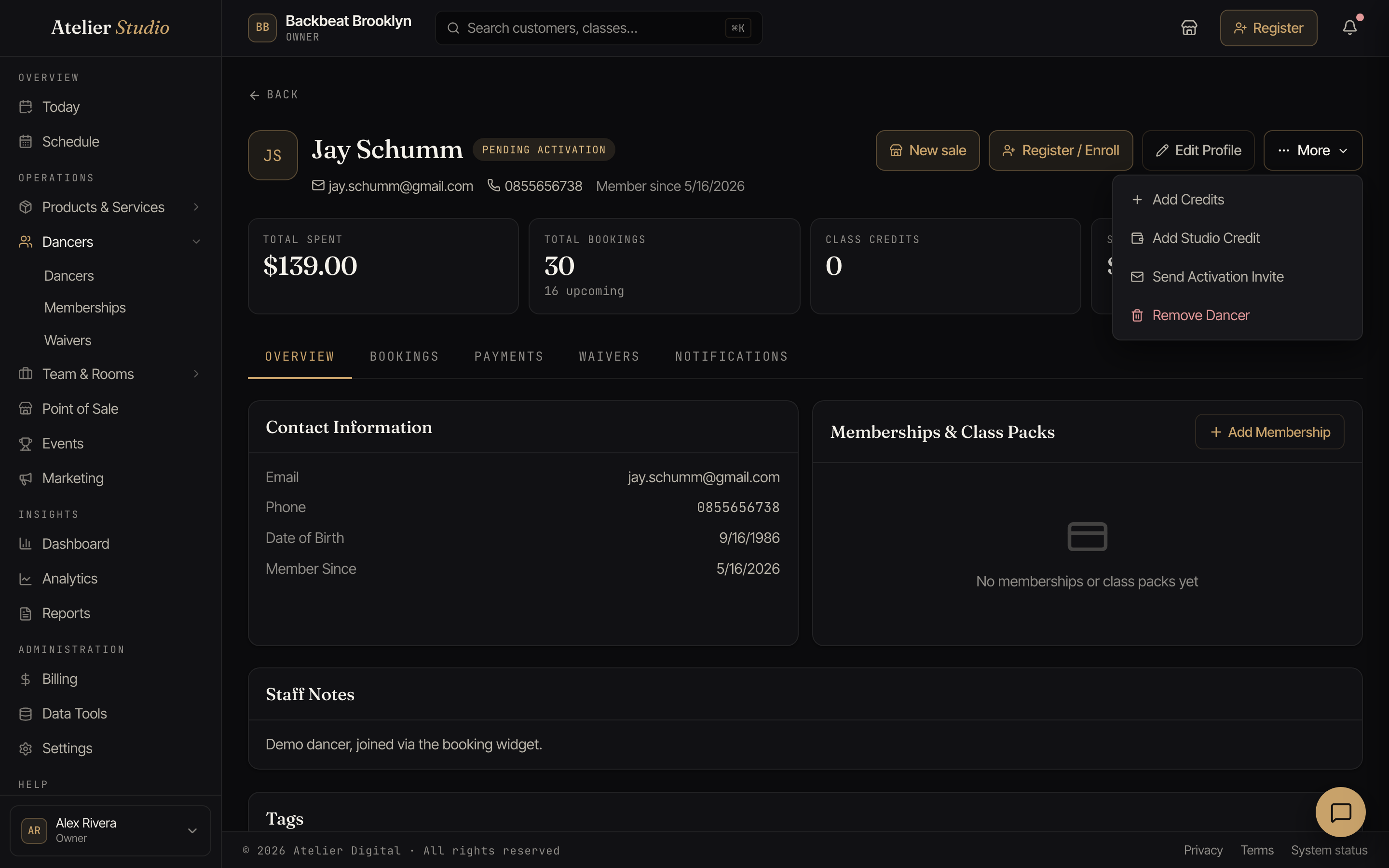
The buttons beside their name are the ones you use most: New sale (if you use the register), Register / Enroll, and Edit Profile. Everything else is under More:
- Add Credits: give them class credits.
- Add Studio Credit: add money to their studio credit balance.
- Send Activation Invite: email them a link to finish setting up their account. You only see this for someone who hasn’t set up their account yet. If you invited them before, you’ll need to wait 7 days between invitations.
- Remove (with your studio’s word for a customer): take them off your list. See Removing someone.
Memberships and class packs
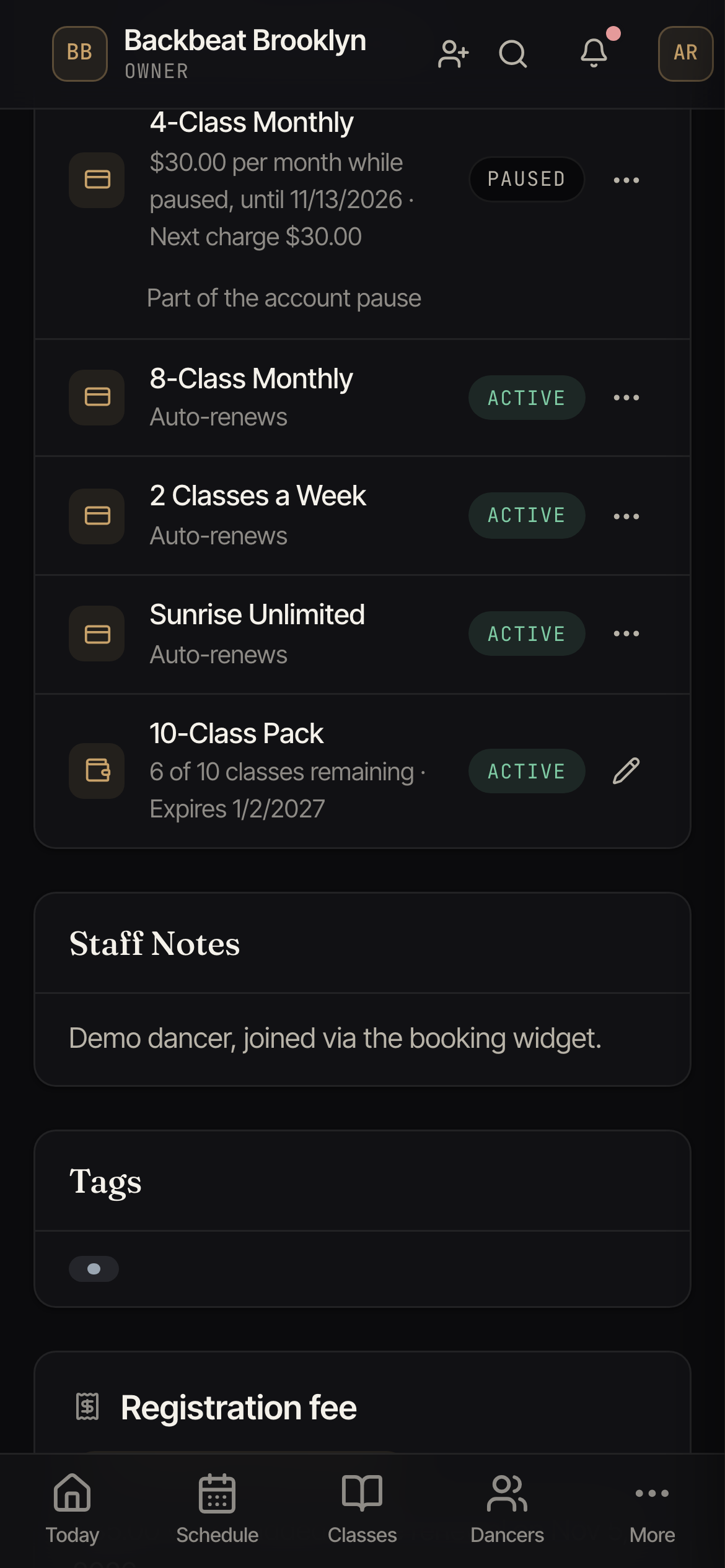
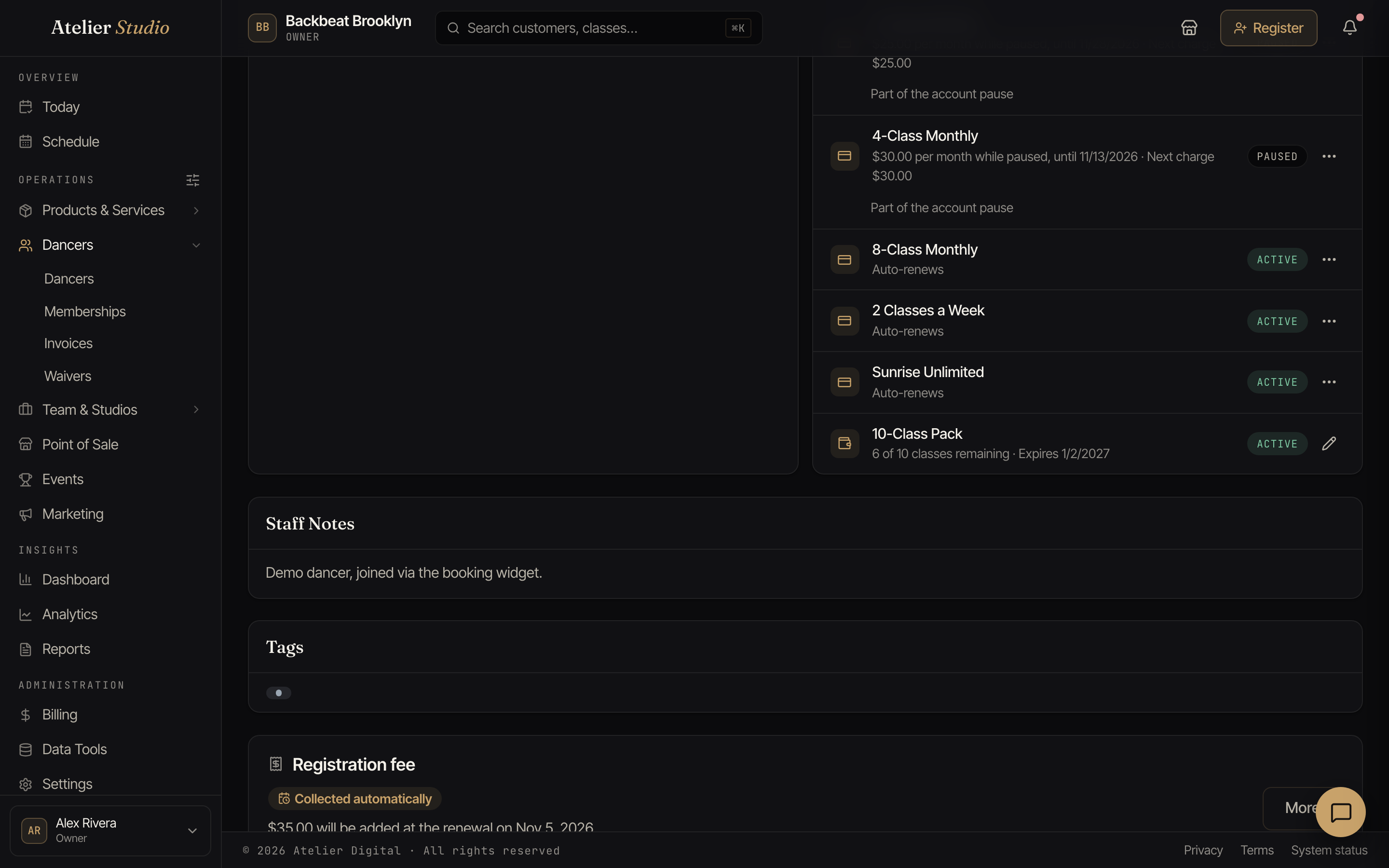
The Memberships & Class Packs card on the Overview tab lists their memberships and the class packs they hold. To sign them up for a membership, select Add Membership. To sell them a class pack, select Add Class Pack right next to it. Both open Register / Enroll straight on the right list. Select Back if you want to sell them something else instead.
To change a pack they already hold, select the pencil on its row. You can set how many classes are left, make it unlimited, change when it expires, or remove it. See Editing a customer’s class pack.
Registration fee
If your studio charges a registration fee, the profile shows a Registration fee card with the student’s state for the current season: Needs attention, Collected automatically, Paid, Not charging, or Not active this season. A sentence says why, and a line shows the season. See the five states.
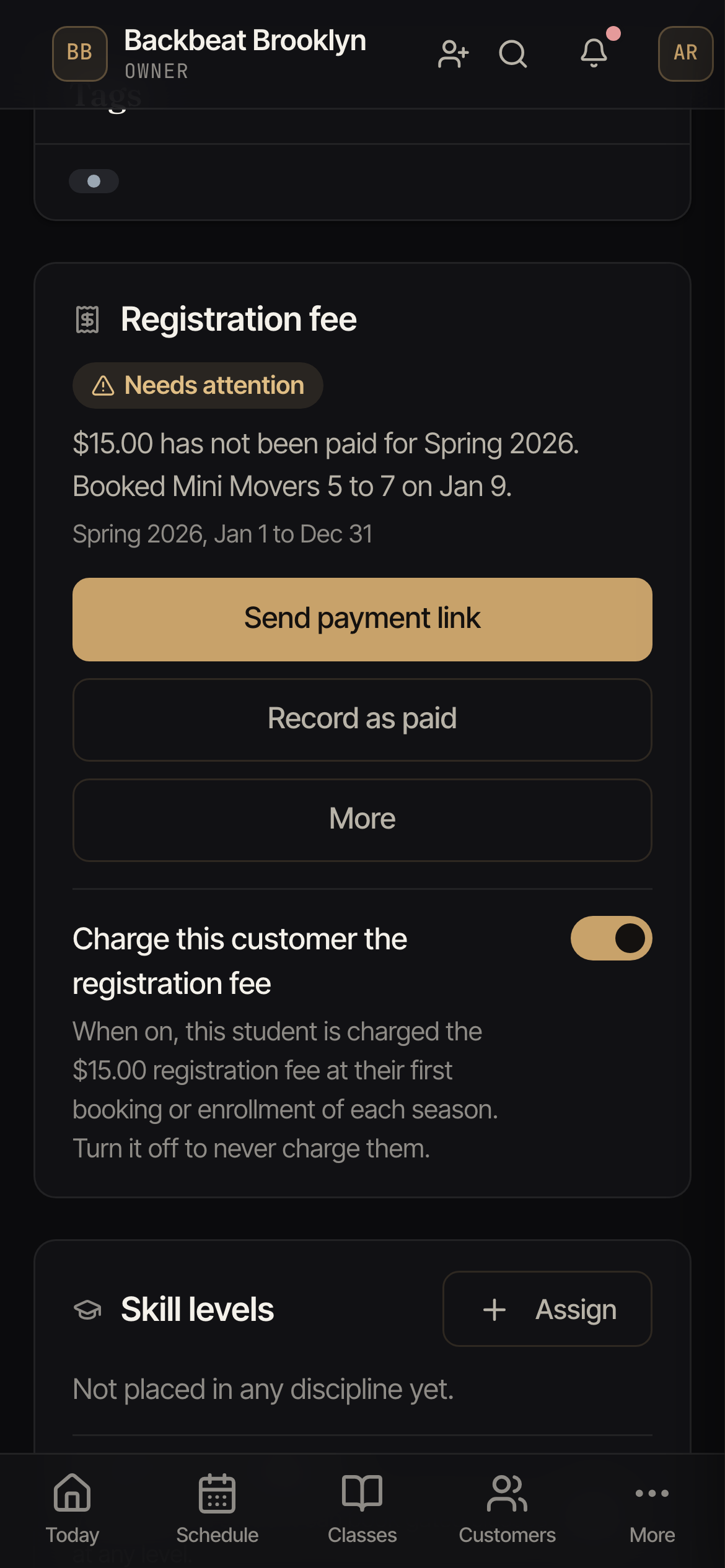
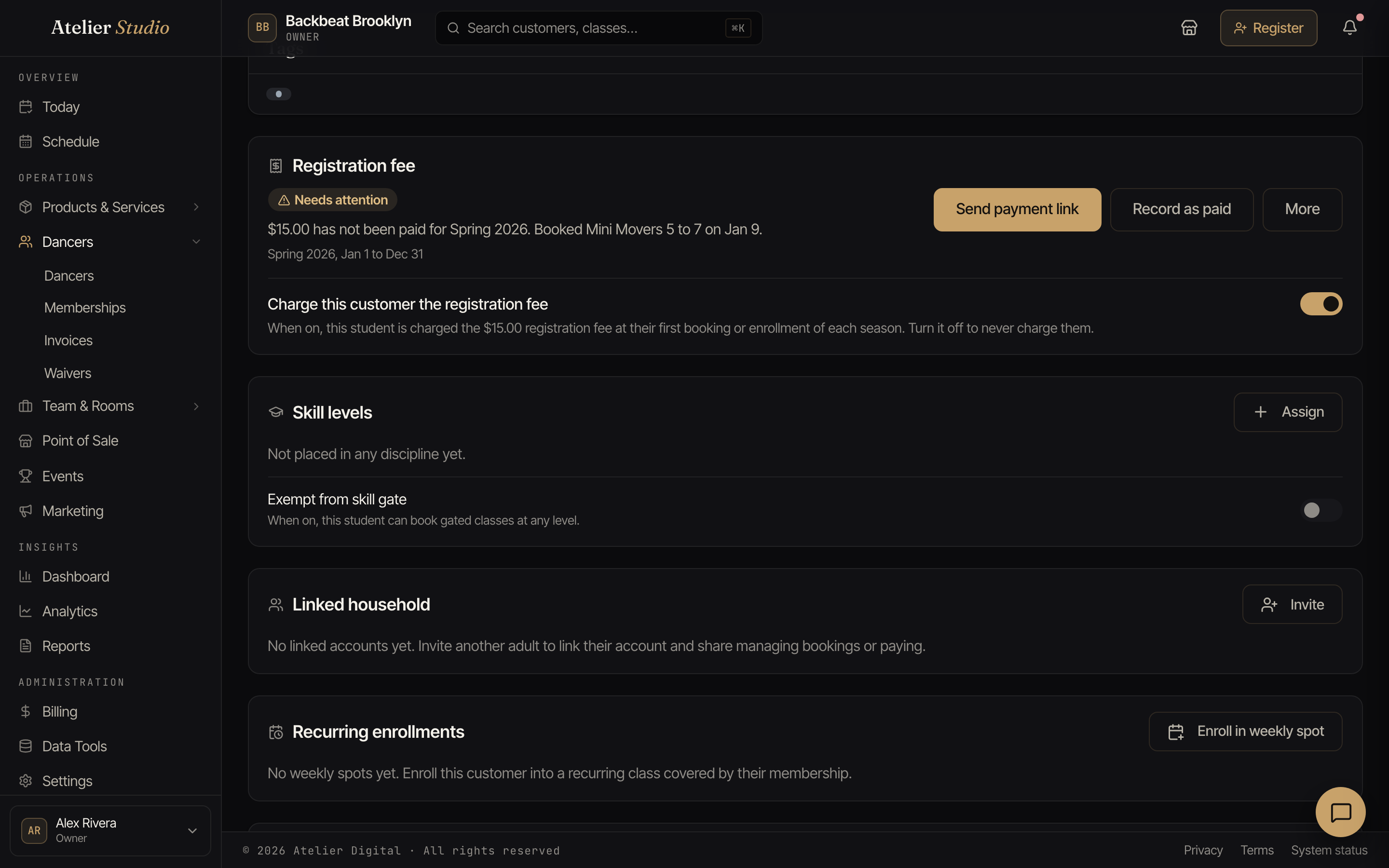
With billing access you can use the buttons on the card:
- Send payment link, Record as paid, Charge it next season, and Never charge. Each works as described in the Registration fees report.
- Charge now instead appears after you choose Charge it next season and undoes it.
- Charge this customer the registration fee is a switch. Turn it off to never charge this person. Turn it back on to charge them again. Turning it on also ends any old “never charge” setting this student had from before, so one switch is all you need.
The tabs
- Overview: contact details, memberships and class packs, their recurring enrollments, any private lessons (with quick actions to reschedule, pause, cancel, or add lesson notes), their skill levels, practice, your notes, tags, recent credit activity, and details.
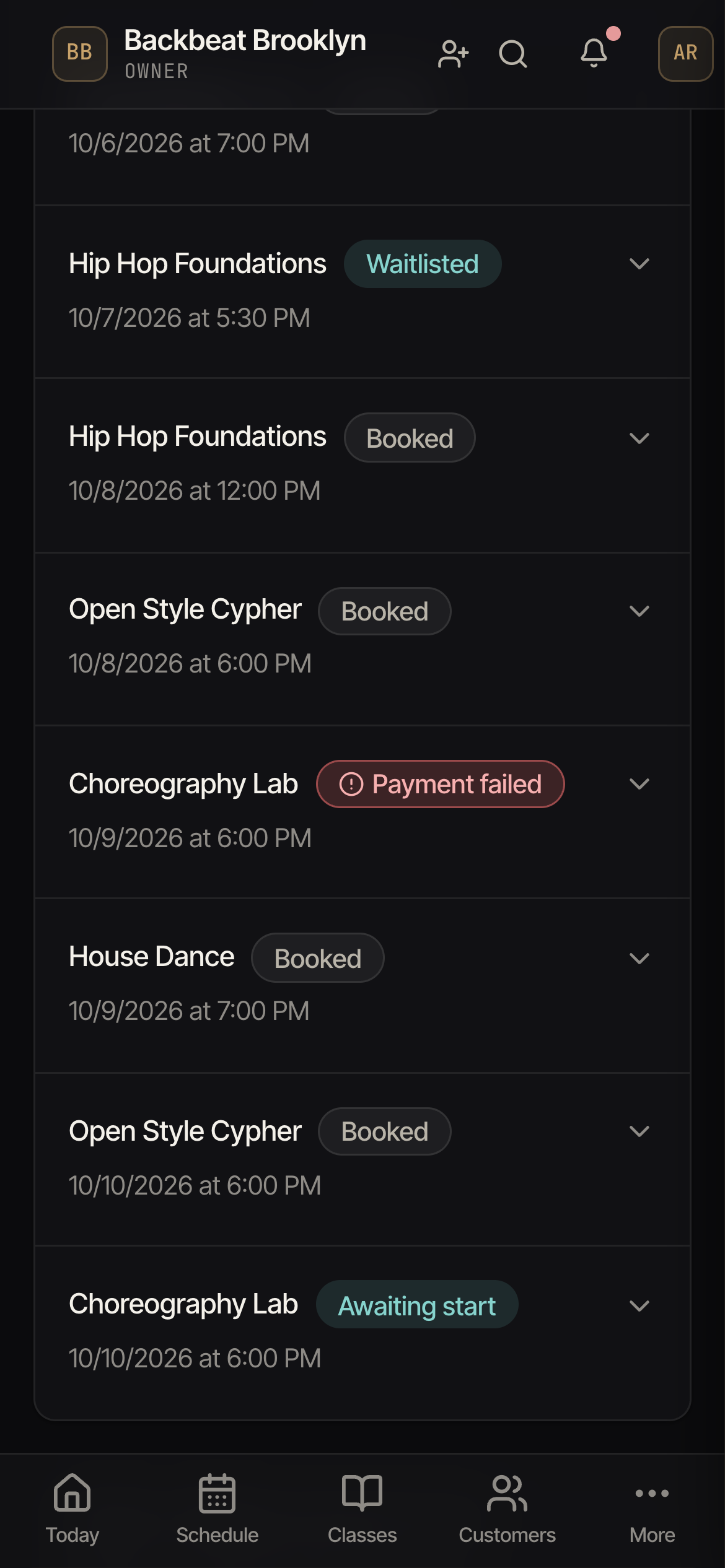
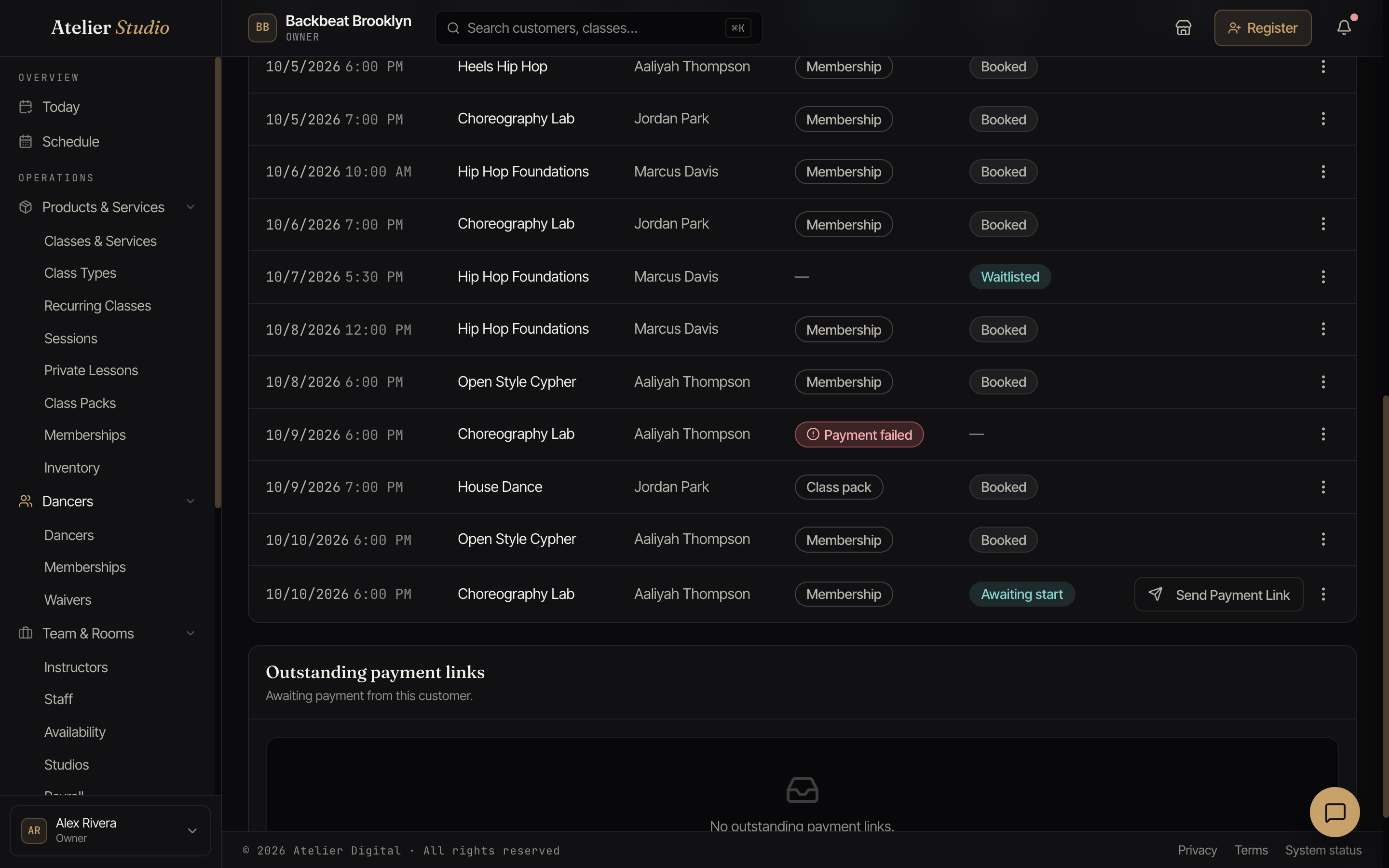
- Bookings: every class they’ve booked, past and upcoming. Each booking has colored labels. Unpaid and Payment failed are red: money is owed. Late cancel is orange: they cancelled too close to the class start. On a late cancel that used a membership or pack class, the row menu has Give class back. See Late cancels and Give class back. Awaiting start is teal: their membership starts later, so the seat is held. A booking also shows + Coupon when a coupon was used, the name of the class pack that paid for it, and N spots when it holds more than one spot. See what the status labels mean. If they missed a class and were marked a no-show, open the menu on that row and choose Schedule make-up to book them into another class at no charge. Once booked, the row shows a Make-up line you can select to open the new class. See Scheduling a make-up class. If they are booked into a class that has not started yet (for example, they called in sick), choose Reschedule to a make-up class on that row instead. Their spot opens up for someone else and the make-up class is free. See Rescheduling a student to a make-up class before class starts.
- Payments: what they’ve paid and any refunds. If you charged them less than the regular price for a purchase, that payment shows the regular price and the reason underneath, so it’s always clear what was adjusted and why (see charging less than the full price). The Invoices list is here too, with a New invoice button to send them an invoice they can pay online. Staff who can’t see payments still see the invoices.
- Waivers: which waivers they’ve signed.
- Notifications: what they’ve been sent.
Skill levels
If you use skill levels, the Overview tab shows a Skill Levels card. Place this student at a level in any discipline you teach, and each change is saved as a dated history so you can see how they’ve progressed. Levels also move when you apply an assessment result. You can add a note to any change and mark it internal to keep it private to your team. Anything not marked internal is shared with the customer on their own profile.
When a class has its skill-level gate turned on, this level decides whether the student can book it. To let someone book regardless of their level, turn on Exempt from skill gate on the card.
Practice
If you use practice logs, the Overview tab shows a Practice card. Assign the student a piece or goal, see the sessions they log from their own account, and select Review on a session to leave feedback: a note the student sees plus an internal note for your team.
Recurring enrollments
If a customer comes to the same class every week, the Overview tab has a Recurring enrollments card. From it you can enroll them into a weekly spot, covered by a membership, or set to pay at check-in (no membership needed, their card charged each week as they arrive). You can tick several classes and add them in one go. Pause, resume, or cancel a spot later. Nothing is charged when you enroll them. You can even set one up for a family member on the same login. See auto-enrollment for the full walkthrough.
Saved cards
The Payments tab lists the cards a customer has on file. With the customer present you can add a card, and you can charge a card or remove one at any time.
To charge a saved card when the customer isn’t there (settling an unpaid booking later, say), the card needs the customer’s authorization on file. A card without it shows No consent on file and its Charge button stays off. With the customer present, select Authorize, have them confirm, and from then on you can charge that card while they’re away.
When you add a card or authorize one, tick the line that says the customer is here and agrees to this charge and to future charges from your studio. Atelier Studio saves that agreement and sends the customer a short email about it. The email names your studio and the card, and it tells them they can stop your studio from using the card at any time in their account. If the customer has no email on file, no email is sent.
When the buttons show
- Add Card shows only when your studio’s Stripe setup can take card payments. If you do not see it, finish payments setup first. See Getting paid.
- Authorize (record the customer’s agreement, also called collecting consent) shows only on a card that allows it. A card your studio removed earlier can be agreed again while the customer is with you. A card the customer stopped cannot. Add the card again with the customer there.
Card states
Each card shows where your studio stands with it:
- Consent on file: your studio can charge this card.
- No consent on file: the card is on the account, but your studio does not have the customer’s OK to charge it. Select Authorize while the customer is with you.
- This studio’s agreement was removed: your team stopped using the card. When the customer is here, you can authorize it again.
- The customer stopped this studio: the customer turned off your studio for this card in their own account. You cannot authorize it again. Add the card again with the customer present, and they agree again.
- Saved at another studio: the customer saved this card somewhere else. Add the card again with the customer present to use it at your studio.
Removing a card from your studio only stops your studio from using it. The card stays on the customer’s own account.
Staff notes
Staff notes are private to your team, a good place for things like injuries, preferences, or “always books the 6pm.” Clients never see these.
Details
At the bottom of the Overview tab, the Details card shows where this person’s record came from. If you moved to Atelier Studio from another platform, it says, for example, Imported from Mindbody. People who joined on Atelier Studio don’t have this card.
Removing someone
To take someone off your list, open More and select Remove. Before you confirm, choose what happens to money they already paid for upcoming classes:
- Studio keeps it: their upcoming bookings are cancelled and the money stays with you. You can still refund them by hand later.
- Refund to original card: prepaid upcoming classes are refunded to the card they paid with. Memberships, terms and private lessons stop billing but are not refunded automatically.
When you remove someone, they no longer show in your list, their upcoming bookings are cancelled, and all their billing (memberships, private lessons, terms) stops. Their past bookings and payments are kept, so your history stays complete. Removing someone only affects your studio. If they also go to another studio on Atelier Studio, nothing changes there.