
For customers · Your Account & Passes
Household profiles
Keep your whole family on one account, each with their own classes, passes, and details.
A profile is a person on your account. You always have your own, and you can add family members (like your kids) so everyone’s classes live in one place while each person keeps their own schedule and passes.
Adding a family member
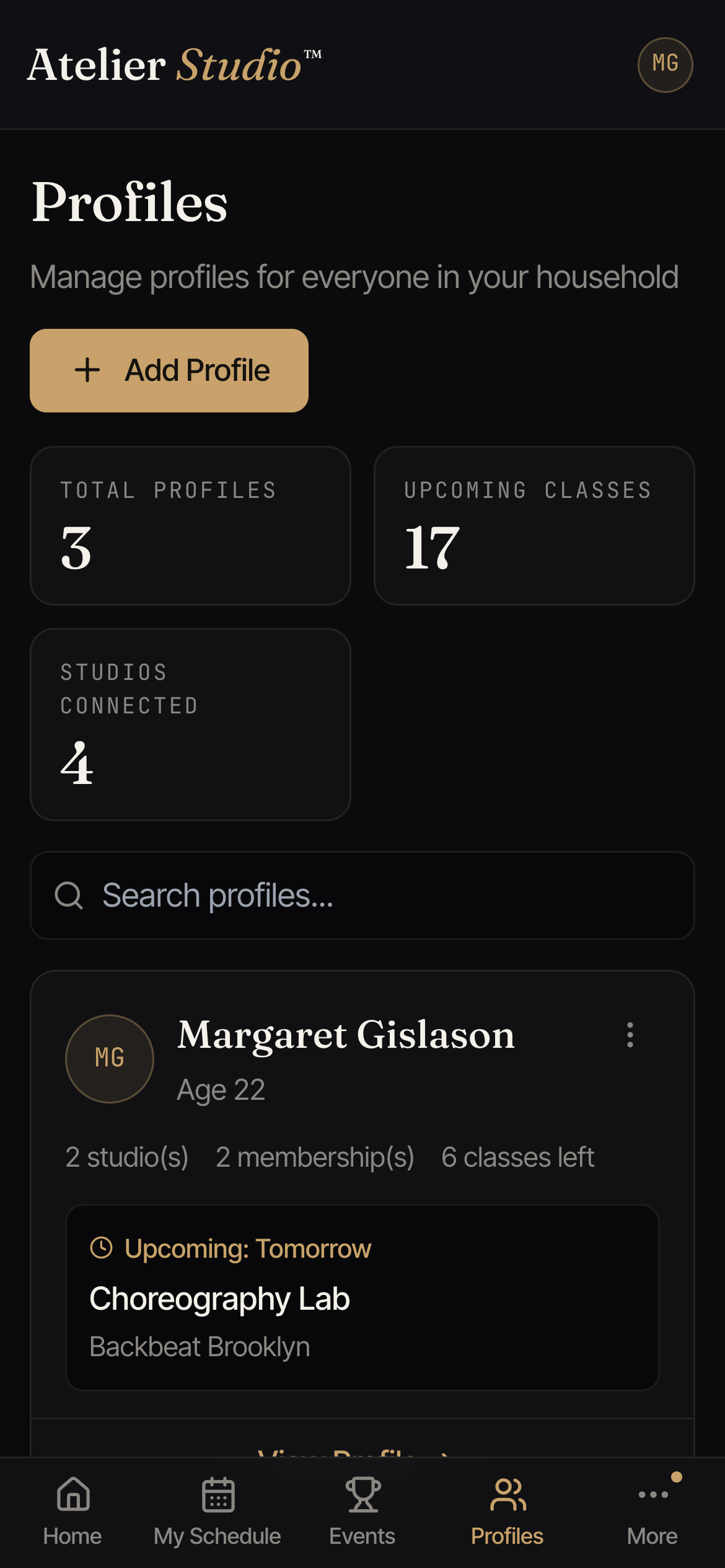
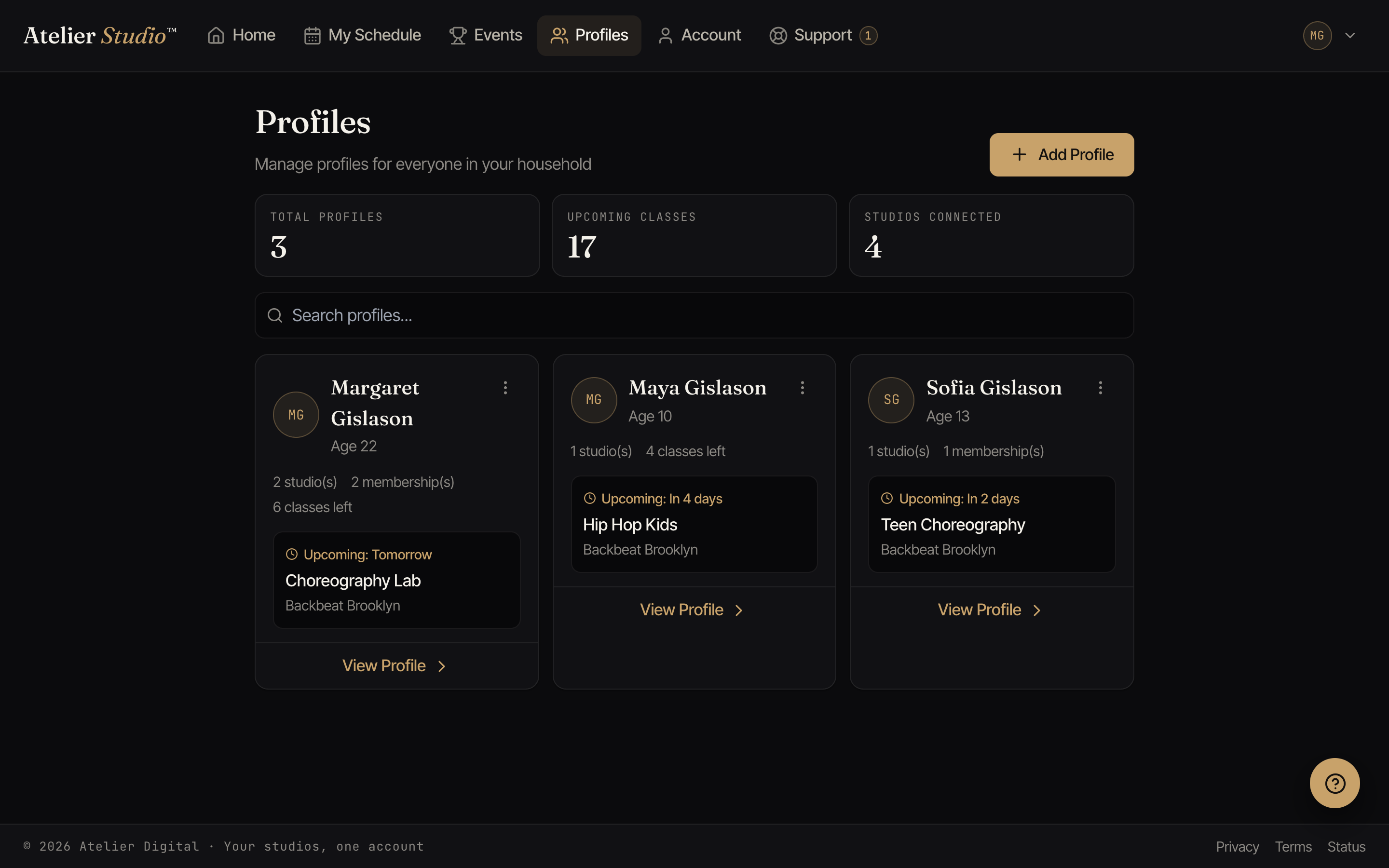
Open Profiles and select Add Profile. Enter their name and date of birth, and add anything the studio asks for, such as an emergency contact. Once added, you can book classes under their name. See Booking for your child.
Editing a profile
Select View Profile on anyone to update their details. This is where you keep information current: a new phone number, an emergency contact, or a waiver the studio needs signed.
Combining duplicate profiles
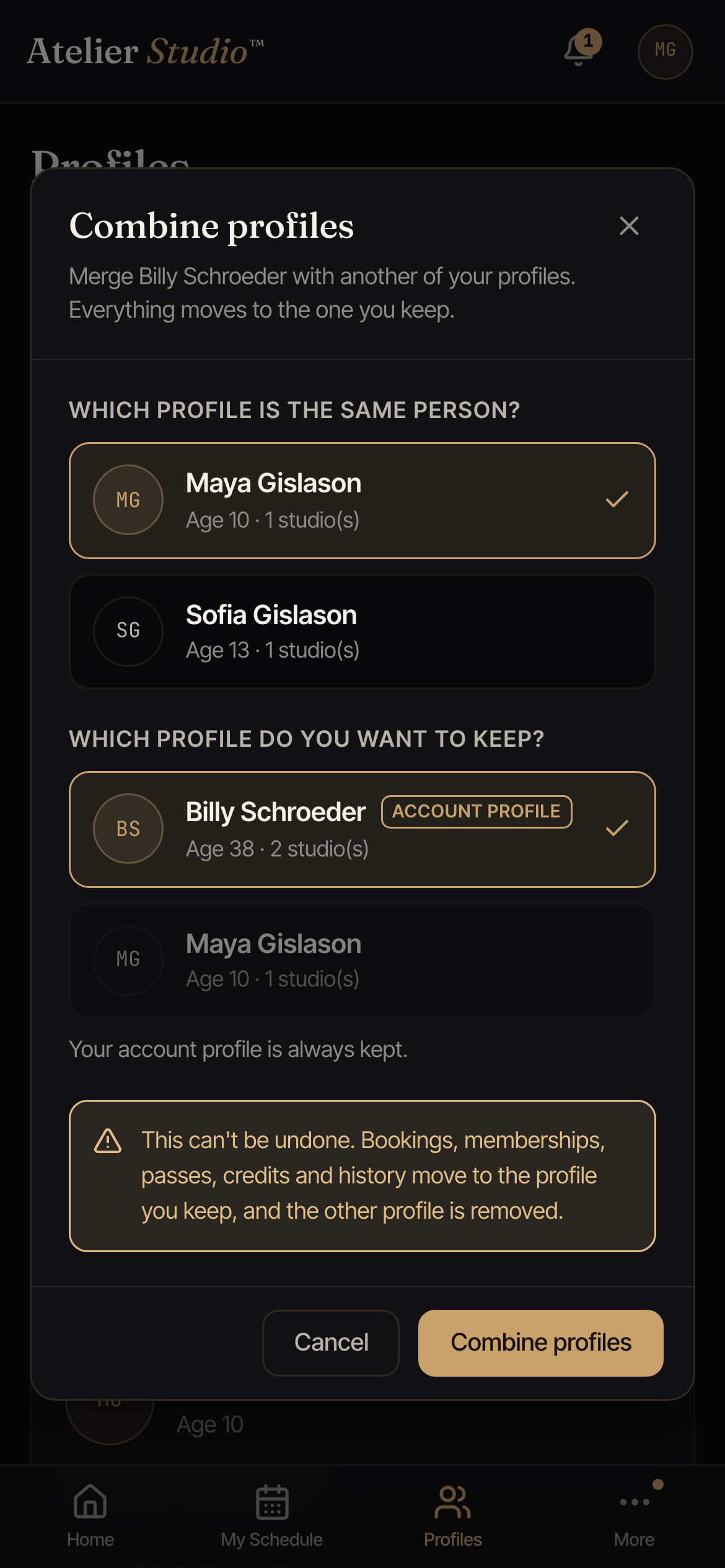
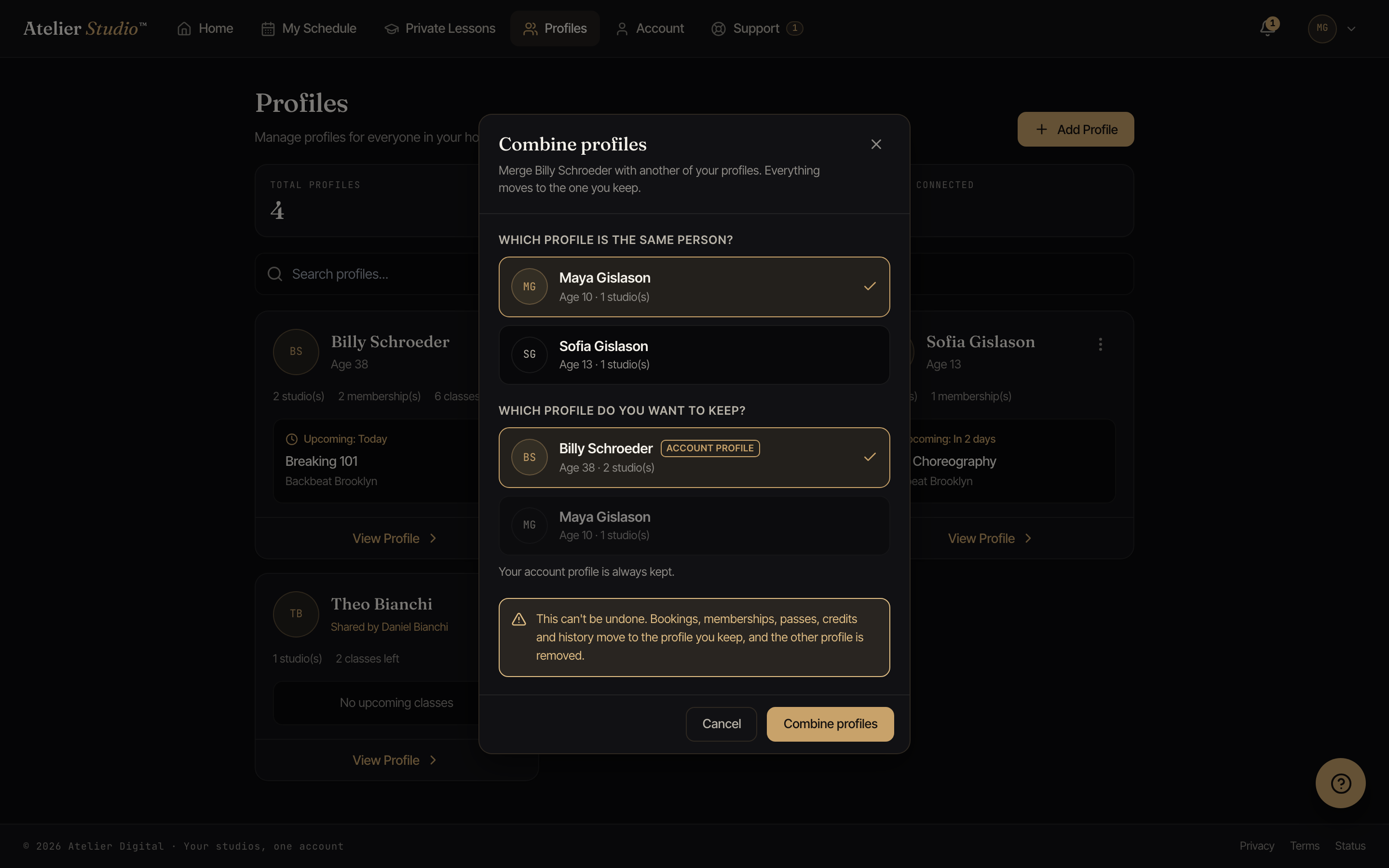
Sometimes the same person ends up with two profiles. Maybe they were added twice, or a studio had them under a slightly different name (a legal first name at one studio, a nickname at another). When the names are too different for us to spot the match on our own, you can combine the two yourself, and everything moves onto the profile you keep.
Open the ⋯ menu on a profile and choose Combine with another profile. Pick the other profile that’s really the same person, choose which one to keep, and confirm. If one of the two is your own account profile, it’s always the one that’s kept.
Skill levels and progress
If a studio you attend tracks skill levels, open a profile to see where they stand. For each studio, you’ll see their current level in the disciplines they’re learning (like Suzuki Book 2 on piano) and a short history of how they’ve moved up, including any note the studio shared after an evaluation. If none of your studios track levels, this simply doesn’t appear.
Practice
If a studio assigns practice, a profile also shows a Practice section: what they’ve been asked to work on, and a Log practice button to record a session with the date, how many minutes they put in, which piece it was for, and a note. Your teacher sees what you log and can leave feedback, which shows up right beside the session. Like everything else, practice belongs to the profile it was logged under.
At a glance
The top of the page shows your totals: how many profiles you have, how many classes are coming up across everyone, and how many studios your household is connected to.